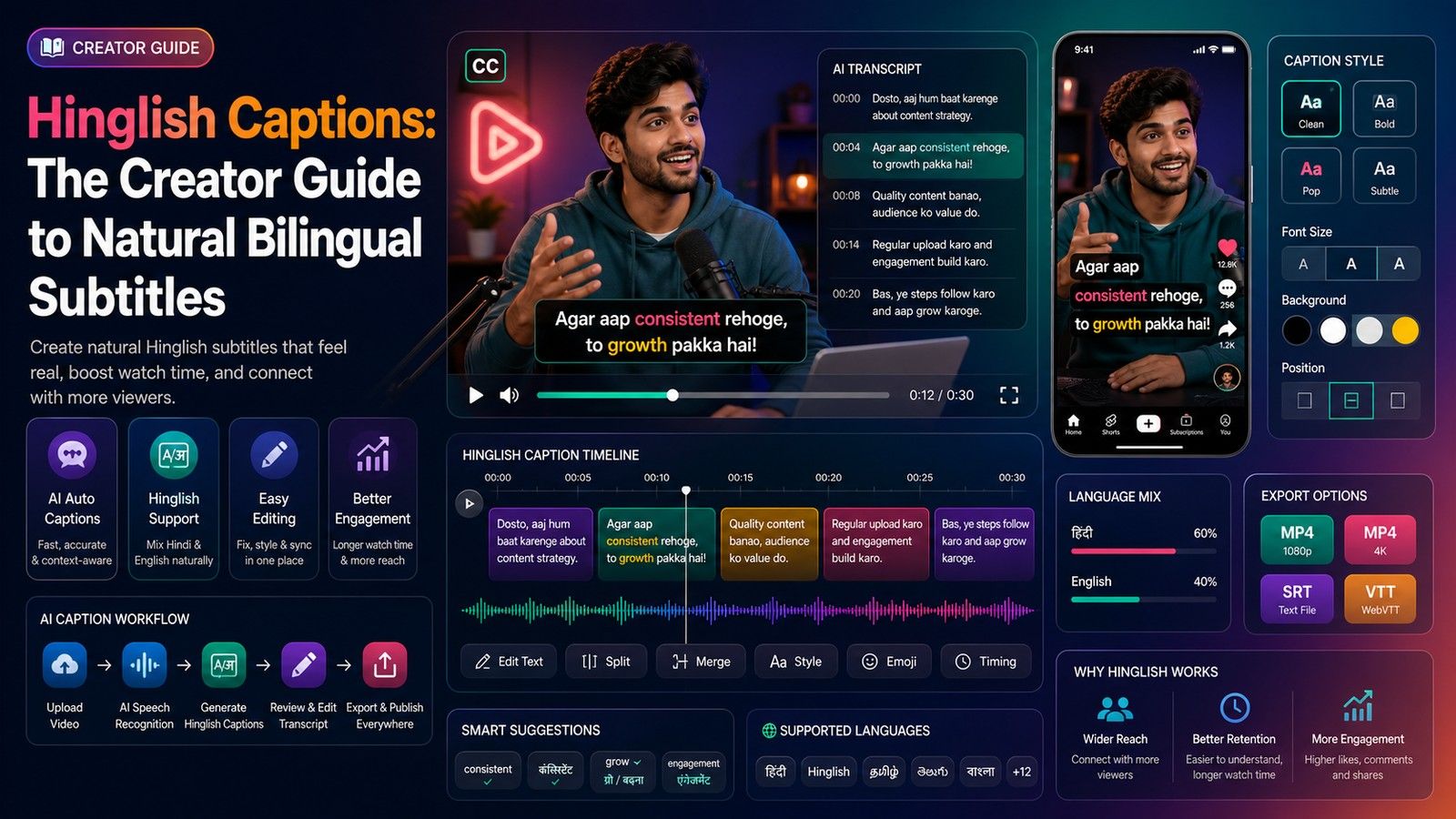
If you are searching for free AI tools for Hinglish subtitles, you have probably hit the same wall as every Indian creator. You say "Aaj ka video beginners ke liye hai" and the caption app gives you Hindi in Devanagari script, a stiff English translation, or a jumble of both. None of it looks like the way you actually spoke.
Hinglish is how a huge part of India talks online. We switch between Hindi and English in the same sentence, write Hindi in Roman letters, and drop words like "feature", "review" and "price" without a second thought. Your subtitles should follow that rhythm. When they do, people scrolling with the sound off can still follow you, and your video feels made for their feed.
In this guide, we break down five free AI tools you can use to add Hinglish subtitles to your videos in 2026. We start with CapsAI, our own Hinglish caption generator, and then cover four other options with their pros, cons and free plan limits, checked on each tool's own website on 15 October 2026. By the end, you will know which tool fits your workflow, whether you make Instagram Reels, YouTube Shorts, long YouTube videos or podcast clips.
What Are Hinglish Subtitles and Why Do Most AI Tools Get Them Wrong?
Hinglish subtitles are on-screen text that shows Hindi-English speech exactly as it was spoken, with Hindi written in Roman letters (Romanized Hindi) and English words left as English. Linguists call this mixing code-mixing, and it is the default language of Indian Reels, Shorts, vlogs and podcasts. If you are new to the idea, read what Hinglish is and why your captions need it.
Here is what that difference looks like in practice:
| What the creator said | What a generic tool often shows | A proper Hinglish subtitle |
|---|---|---|
| Aaj ka video beginners ke liye hai | आज का वीडियो beginners के लिए है | Aaj ka video beginners ke liye hai |
| Honestly, mujhe ye result expect nahi tha | Honestly, I did not expect this result | Honestly, mujhe ye result expect nahi tha |
| Price sirf 499 rupees hai | प्राइस सिर्फ 499 रुपीज़ है | Price sirf ₹499 hai |
Why speech-to-text tools struggle with Hinglish
Many speech-to-text tools expect one language per video. YouTube's own help page, for example, lists speech in more than one language at the same time as a reason automatic captions may not work. When you switch mid-sentence, a tool has to guess, and the usual results are everything in Devanagari, everything translated into English, or a mixed-script line that is hard to read.
A few other things trip them up:
- No fixed spelling. One creator writes "hai", another writes "h" or "he". Tools trained on formal text don't know which one your audience expects.
- Names and brands. Indian names, local places and product names often come out misspelled.
- Slang and fast speech. Words like "yaar", "bhai", "scene kya hai" and fillers like "matlab" confuse generic models.
- Audio quality. Phone mics, background noise and different accents all lower accuracy.
That is why a tool with a real Hinglish setting, plus a quick human review, usually saves you more time than a general caption tool.
Hinglish captions vs Hinglish subtitles: is there a difference?
In everyday creator language, the two words mean the same thing: timed text on your video. Technically, "subtitles" usually means a text file (like SRT) that a player shows on top of the video, while "captions" on Reels and Shorts are usually burned in, meaning the text is part of the video itself. Burned-in captions show on every platform and can't be switched off, which is why most short-form creators prefer them.
What to Look for in a Hinglish Subtitles Generator
Before you pick a tool, check it against these six points. They decide whether you save time or end up retyping half your captions.
1. Roman script output
The tool should write Hindi in Roman letters, not Devanagari, and keep English words as they were spoken. If you have to convert scripts by hand, the tool is not really saving you time.
2. Easy editing
Every AI tool makes mistakes with names, numbers and slang. Look for an editor where you can fix a word in seconds and adjust when each line appears.
3. Caption styles
Short-form video needs bold, readable captions: the right font, colour, size and position, and ideally word-by-word captions that highlight each word as you say it.
4. Honest free plan and watermark rules
Many "free" tools add a watermark, cap export quality or limit video length. Know the limits before you upload a 10-minute video.
5. Works on your phone
Most Indian creators shoot and post from their phones. A tool that runs smoothly in a mobile browser saves you the hassle of moving files to a laptop.
6. The export you need
For Reels and Shorts, you want a burned-in MP4. For long YouTube videos, an SRT file you can upload as closed captions is often better.
How we picked these 5 tools
We looked for tools that offer a free way to start, handle Hindi or Hinglish speech, and are available to creators in India. Apps that are not officially available in India, such as CapCut since the 2020 app ban, were left out. We checked every competitor's details on its own website on 15 October 2026. Free plans change often, so check each tool's pricing page before you commit.
Top 5 Free AI Tools for Hinglish Subtitles at a Glance
Two tools on this list name Hinglish as a language: CapsAI and Kapwing. They work differently. In CapsAI, Hinglish is the spoken language you pick before transcription, and you get Roman-script Hinglish with English words kept as spoken. Kapwing's Hinglish page describes Hinglish as a target language: you select the original language of your video, then set Hinglish (or Romanized Hindi, a separate option) as the target. VEED, YouTube Studio and Whisper list Hindi but not Hinglish, so plan for extra editing with those three.
| Tool | Hinglish option | Free option | Watermark-free export | Best for | Where it runs |
|---|---|---|---|---|---|
| CapsAI | Yes, Hinglish is a spoken-language choice | 3 free minutes, no card | One-time packs from ₹49 | Reels, Shorts, talking-head creators | Phone and desktop browser |
| VEED | Not listed; Hindi is | Free to start; free exports carry a watermark | Paid plans (subscription) | All-in-one browser editing | Web, plus an iOS app |
| Kapwing | Yes, as a target language (Romanized Hindi too) | Free plan: watermark, exports up to 4 minutes at 720p | Paid plans, Pro from $16 a month | Hinglish SRT/VTT files, teams | Web |
| YouTube Studio | Not listed; Hindi is | Free | Yes (caption file, not burned in) | Long YouTube videos | YouTube Studio |
| OpenAI Whisper | No; Hindi, or translation into English | Free, open source | Yes (text files only) | Tech-savvy creators | Your computer or Google Colab |
Competitor details come from each tool's own website, checked on 15 October 2026. Plans change often, so double-check before you pay.
1. CapsAI: A Hinglish Caption Generator Built for Indian Creators
CapsAI is our own tool, built for the way Indian creators actually talk. You select Hinglish as the spoken language, upload your video, and get a timed first draft with Hindi in Roman letters and English words kept exactly as you said them.
So instead of "मुझे ये feature काफी useful लगा", you get "Yaar honestly mujhe ye feature kaafi useful laga", ready to style and post.
What makes CapsAI different
- Hinglish is the spoken-language setting. You pick it before transcription, so there is no translation step and no Devanagari-to-Roman conversion afterwards.
- Built for short-form video. Caption styles, word-by-word highlighting and placement are designed for vertical Reels and Shorts.
- Review before export. Every line is editable, so you can fix names, brands, prices and slang before your audience sees them.
- Priced for India. One-time packs in rupees, with no subscription to remember or cancel.
Key features
- Upload MP4 or MOV files up to 10 minutes per video
- 11 spoken languages, including Hinglish, Hindi and English
- Edit caption text, timing, fonts, colours and position
- Word-by-word captions for fast creator speech
- Ready-made Hinglish caption styles to preview before you upload
- Burned-in MP4 export, so captions show on Instagram, YouTube, WhatsApp and everywhere else
- AI emoji sync and up to 4K export on the Creator and Pro packs
Free plan and pricing
Every new account gets 3 free minutes with no card required, which is enough to caption two or three short Reels and see the quality for yourself. After that, you can buy a one-time pack:
| Pack | Price | Upload minutes | Highlights |
|---|---|---|---|
| Starter | ₹49 one time | 20 minutes | No watermark, premium styles, 1080p export |
| Creator | ₹99 one time | 60 minutes | Adds AI emoji sync, up to 4K export |
| Pro | ₹299 one time | 180 minutes | For channels, agencies and long videos |
Nothing renews automatically. See the full details on the CapsAI pricing page.
Pros
- Roman-script Hinglish straight from transcription, with no translation step
- Simple workflow that works in a phone browser
- Affordable one-time packs, starting at ₹49
- Caption styles made for Reels and Shorts
Cons
- The free trial is 3 minutes, so heavy users will need a pack
- Each upload can be up to 10 minutes, so split longer videos
- Exports are MP4 with captions burned in; there is no SRT or VTT download
- No translation, no video-link import and no audio-only upload
- 11 spoken languages, while Kapwing accepts videos in 100+ languages
- Projects are stored for a limited number of days depending on your pack
Best for
Instagram Reels and YouTube Shorts creators, talking-head educators, podcasters making clips, and freelance editors who deliver captioned Hinglish MP4s every week.
2. VEED: A Browser Video Editor With Auto Subtitles
VEED is an online video editor with auto subtitles in many languages, including Hindi. It suits creators who want to trim, caption and export a video in one place without installing anything. VEED's website also links an iOS app.
How VEED handles Hinglish
When we checked VEED's auto subtitle and Hindi subtitle pages on 15 October 2026, they listed Hindi but did not mention Hinglish or a Roman-script option, and the Hindi page did not say which script the output uses. Test a 30-second clip first. If the text comes back in Devanagari or as an English translation, you will need to rewrite lines into Roman Hinglish yourself.
VEED free plan
VEED says its auto subtitle generator is free to start, and its Hindi page says adding subtitles needs no upgrade. Videos made on the free plan carry a VEED watermark in the corner. VEED's subtitle page also says you need a paid plan to subtitle longer videos and to download subtitle files. That page lists the Creator plan from $20 a month, and VEED's pricing FAQ says prices are shown in your local currency where available. Paid plans renew until you turn off auto-renewal.
VEED pros and cons
- Pro: all-in-one editor to trim, add text, subtitles and more
- Pro: subtitle file downloads (SRT, VTT and TXT) on paid plans, which CapsAI does not offer
- Pro: also accepts audio files such as MP3 and WAV for subtitles
- Con: no Hinglish option listed, so expect editing time
- Con: watermark on free exports; longer videos and subtitle downloads need a paid plan
- Con: a monthly or annual subscription rather than a one-time pack
Best for: creators who mostly make English or Hindi videos, want a full editor, and only need Hinglish subtitles now and then.
3. Kapwing: Hinglish as a Translation Target, Plus SRT Files
Kapwing is an online editor known for team collaboration, and it has a dedicated Hinglish subtitles page. Of the four other tools here, it is the only one that names Hinglish as a subtitle language.
How Kapwing handles Hinglish
Kapwing's Hinglish page, checked on 15 October 2026, describes the flow like this: upload an MP4 or paste a video link, click auto-subtitles, select the original language of the video, and set Hinglish as the target language. Kapwing also offers Romanized Hindi as a separate target. Kapwing describes this as translating your content into Hinglish, so it is a translation step on top of the transcript rather than a direct Hinglish transcription. Its pages don't show sample output, so try a short clip and check that Hindi words come out in Roman letters and English words stay as you said them.
Kapwing free plan
From Kapwing's pricing page on 15 October 2026:
- Free exports carry a Kapwing watermark
- Exports can be up to 4 minutes long, at 720p, with a 30-minute monthly export limit
- Auto-subtitling up to 10 minutes and auto-translating up to 5 minutes
- Projects are stored for 3 days
- SRT and VTT file downloads are not included on the free plan
The Pro plan is listed at $16 a month on monthly billing (annual billing is marked "Save 33%"). It removes the watermark, allows 4K exports up to 2 hours long, and includes SRT and VTT downloads.
Kapwing pros and cons
- Pro: Hinglish and Romanized Hindi are both listed as subtitle targets
- Pro: SRT, VTT and TXT downloads on paid plans, which CapsAI does not offer
- Pro: paste a video link instead of uploading, and export up to 2 hours on Pro
- Pro: shared workspaces for teams and agencies
- Con: free exports are watermarked and capped at 4 minutes and 720p
- Con: Hinglish works as a translation target, and free translation is capped at 5 minutes
- Con: priced in US dollars on a monthly or annual plan
Best for: editors and teams who need a Hinglish SRT or VTT file, longer videos or shared workspaces, and are fine paying a dollar subscription.
4. YouTube Studio: Free Auto Captions and a Hinglish SRT Generator Workaround
If your video is going on YouTube anyway, YouTube Studio's automatic captions are free. You can edit them in YouTube Studio and download the caption track as a file.
How YouTube Studio handles Hinglish
YouTube's list of automatic caption languages includes Hindi but not Hinglish or Roman-script Hindi (checked on YouTube Help on 15 October 2026). The same help page says automatic captions may not work when more than one language is spoken at the same time, which is exactly what Hinglish does, and that captions may not be ready right after upload. Expect to edit the text if you want it to match your on-screen Hinglish style.
The free Hinglish SRT workaround
You can use YouTube as a free Hinglish SRT generator:
- Upload your video to YouTube as Unlisted.
- Wait for automatic captions to appear under Subtitles in YouTube Studio.
- Choose Duplicate and edit on the automatic track, fix the words, and rewrite lines into Roman Hinglish where needed.
- Under Options, choose Download subtitles. YouTube's help page doesn't name the file type, so check that you have an .srt file before importing it into your editor.
YouTube Studio pros and cons
- Pro: free, with nothing added to your video
- Pro: download the caption track as a file, handy for long videos already on YouTube
- Con: captions are not burned in, so they don't help on Instagram Reels
- Con: automatic captions may take a while to appear after upload
- Con: no Hinglish option, and mixed-language speech can trip up automatic captions
Best for: YouTubers making long videos who want free closed captions and a caption file.
5. OpenAI Whisper: Free and Open Source for Tech-Savvy Creators
Whisper is an open-source speech-to-text model from OpenAI, released under the MIT licence. It lists Hindi among its languages and can write subtitle files in SRT and VTT, plus TXT, TSV and JSON. The catch is that you run it yourself, on your own computer or in a Google Colab notebook, and it needs Python and the ffmpeg command-line tool.
How Whisper handles Hinglish
Whisper's language list includes Hindi but has no Hinglish or Roman-script Hindi option. You can transcribe with the language set to Hindi, or use its translate task, which turns speech into English. Its README notes that the default turbo model is not trained for translation, so use the medium or large model for that. Neither route has a Roman Hinglish setting, so plan for a transliteration step or manual edits.
Whisper pros and cons
- Pro: free and open source, with no watermark
- Pro: writes SRT and VTT files, and your video stays on your own machine if you run it locally
- Con: needs technical setup (Python, ffmpeg, the command line or Colab)
- Con: larger models need a graphics card with more memory; the README lists about 10 GB for the large model
- Con: no editor or caption styles; you burn in captions with another tool
Best for: developers, tech creators and editors who are comfortable with code and want free transcription on their own machine.
How to Add Hinglish Captions to Video With CapsAI (Step by Step)
You can go from raw video to a captioned Reel in a few minutes. Here is the exact workflow:
- Open the Hinglish caption generator. Go to the Hinglish caption generator and tap "Generate Hinglish Captions Free". Hinglish is already selected for you.
- Upload your video. Choose an MP4 or MOV file with clear speech, up to 10 minutes long. You can upload straight from your phone's gallery.
- Let the AI create a first draft. CapsAI listens to your audio and writes timed Hinglish captions in Roman script.
- Review the words. Read through once and fix names, brand names, prices and any slang the AI misheard. This usually takes a minute or two for a Reel.
- Style your captions. Pick a caption style, then adjust font, colour, size and position so the text doesn't cover your face or product. Try word-by-word highlighting for fast-paced videos.
- Export and post. Download your MP4 with the captions burned in, then upload it to Instagram, YouTube Shorts or anywhere else.
Your first 3 minutes are free, so you can test this on a real video before spending anything.
Which Free Hinglish Caption Generator Should You Choose?
The right tool depends on what you make and where you post. Use this table to decide in ten seconds:
| If you are... | Pick | Why |
|---|---|---|
| A Reels or Shorts creator speaking Hinglish | CapsAI | Hinglish is the spoken-language setting, creator caption styles, burned-in MP4 |
| A freelance editor delivering captioned MP4s to clients | CapsAI (Creator or Pro pack) | One-time packs, about ₹1.65 per minute, up to 4K export |
| A podcaster making short clips | CapsAI | Conversational Hinglish and caption styles for vertical clips |
| Someone who needs a Hinglish SRT or VTT file | Kapwing (paid plan) | Hinglish and Romanized Hindi targets, SRT and VTT downloads on paid plans |
| A YouTuber who needs closed captions on long videos | YouTube Studio | Free captions and a caption file download inside YouTube |
| Someone editing a full video in the browser | VEED or Kapwing | All-in-one editors; Kapwing lists Hinglish, VEED lists Hindi |
| A developer who wants free transcription on their own machine | OpenAI Whisper | Open source, runs locally, SRT and VTT output |
If you make short Hinglish videos and post a burned-in MP4, CapsAI is the most direct route on this list: you pick Hinglish before transcription, there is no translation step, and the smallest pack costs ₹49 one time. If you need a subtitle file, videos longer than 10 minutes or a team workspace, Kapwing does more, at a dollar subscription price.
Tips for Accurate Auto Caption Hinglish Results
Even a great tool works better with good input. These habits will save you editing time.
Record clean audio
Use a clip-on mic if you can, or at least record in a quiet room. Fans, traffic and background music are the biggest reasons auto captions miss words.
Choose Hinglish, not Hindi
If your tool offers Hinglish, always select it. Choosing Hindi usually gives you Hindi script, and choosing English may translate your lines.
Double-check names, brands and numbers
AI often misspells Indian names, local places and product names. Prices and numbers like "₹499" or "5 lakh" are worth a second look, because a wrong number can mislead your audience.
Pick one spelling style and stick to it
Decide whether you write "hai" or "h", "nahi" or "nhi", "kya" or "kyaa". Consistent spelling makes your captions look professional and easier to read.
Keep lines short
On vertical video, two to five words per caption is easier to read than long sentences. Short lines also keep viewers watching, especially in the first three seconds.
Place captions carefully
Keep text away from your face, your product, and the bottom area where Instagram and YouTube show buttons and descriptions.
Final Verdict: Which Free Hinglish Subtitle Tool to Start With
There are several free AI tools for Hinglish subtitles, and they suit different jobs. Kapwing is the closest alternative for Hinglish: it lists Hinglish and Romanized Hindi as subtitle targets and offers SRT and VTT downloads on paid plans, though its free exports are watermarked and capped at 4 minutes, and its plans are priced in dollars. VEED is a full editor that lists Hindi but not Hinglish. YouTube Studio is free for closed captions on YouTube, and Whisper is free if you are comfortable with code, but both list Hindi rather than Hinglish, so you will edit by hand.
CapsAI is built around one job: turning Hinglish speech into styled, burned-in captions for Reels and Shorts. You pick Hinglish before transcription, fix any lines, choose a style and download an MP4. With 3 free minutes to start and one-time packs from ₹49, it is a low-cost way to see whether it fits your videos. If you need an SRT file, use Kapwing or YouTube Studio instead, because CapsAI does not export subtitle files.
Ready to try it? Generate your first Hinglish captions free on CapsAI. No card needed, and Hinglish is already selected for you.