


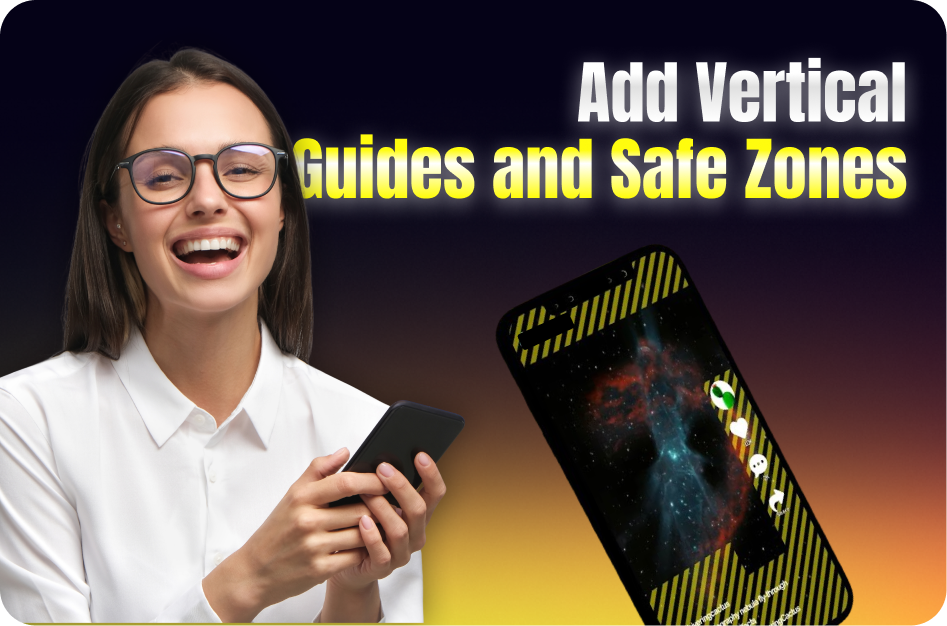
Vertical video formats dominate platforms like YouTube Shorts, Instagram Reels, and TikTok. But without proper framing, key elements - like text or faces - might get cropped by app overlays. Here's how to add vertical guides and safe zones in popular editing apps to ensure professional, mobile-first videos.
Why Safe Zones Matter
Safe zones ensure vital content isn’t obscured by platform UI, such as play buttons, captions, or action bars. Keeping text, subjects, and effects inside these zones improves visibility, click-through rate, and viewer retention.
1. Use Built-in Grid or Guide Layers
Most modern editing apps have overlays or grids. Here’s how to activate them:
CapCut
- Go to: Canvas > Format > 9:16 ratio.
- Enable Guide Lines: Use the overlay grid to align text, stickers, and subjects.
VN Editor
- Tap the Settings icon while editing.
- Enable Safe Margins or Grid Lines under Video Settings.
Adobe Premiere Pro
- Go to: View > Show Rulers & Guides.
- Add custom guides manually.
- Use the Title Safe/Action Safe option under Overlays for precise alignment.
2. Follow the Rule of Thirds (3x3 Grid)
A classic composition technique:
- Split the frame into thirds vertically and horizontally.
- Place key visuals (text, objects, or faces) along those lines or intersections.
- In vertical video, center subjects or use top third for facial focus.
3. Title Safe vs Action Safe Zones
These are default overlays in many pro editors:
- Title Safe: Ideal for placing text - prevents cutoffs from UI overlays.
- Action Safe: Ensures visible motion is not clipped.
In Adobe Premiere, these are found under Program Monitor settings > Overlays > Title/Action Safe.
4. Best Practices for Mobile View
- Text Placement: Avoid bottom 20% of screen - platform captions or buttons may overlap.
- Face Framing: Keep faces in the middle or top third of the screen.
- Test on Device: Preview edited videos on actual phones to verify layout.
Bonus Tip: Preview Using YouTube Shorts Upload
After editing:
- Upload as unlisted.
- Use the YouTube Studio preview.
- Make final tweaks if UI overlaps any visual element.
By following these guide and safe zone practices, your Shorts and Reels will appear polished, professional, and optimized for engagement across mobile platforms.