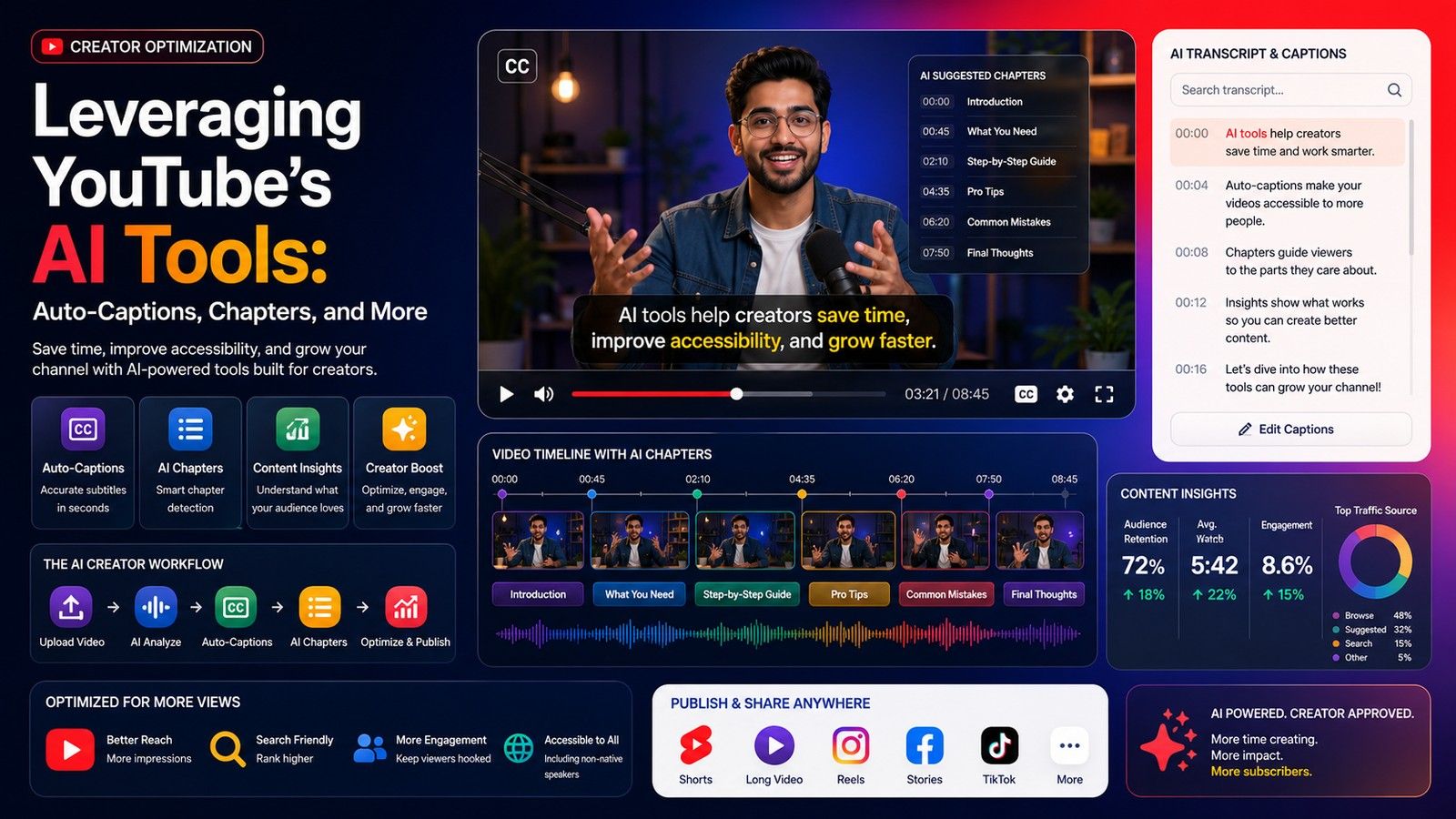
YouTube auto captions are generated after upload, not during it, and YouTube does not promise a time by which they will appear. If your video shows no CC button yet, the most likely explanation is that the captions are still processing; if hours have passed, one of six conditions YouTube lists has probably blocked them. This guide covers what YouTube says about timing, each reason captions go missing, how to check and fix them in YouTube Studio, and what to do when you need captions on the video today.
Does YouTube automatically generate captions?
Yes. YouTube's Help Center says automatic captions are available in many languages, and it names English, Hindi and Spanish among them. You do not switch anything on. When a video finishes uploading, YouTube's speech recognition works through the audio in the background and attaches a caption track when it is done.
If a video has more than one audio track, the automatic captions follow the default track's language. Everything else about auto captions, including the delays and failures below, applies to both normal uploads and Shorts, because YouTube documents them in a single section titled "Automatic captions on long-form videos and Shorts".
Automatic is not the same as instant or guaranteed. YouTube is careful to say captions "may not be ready at the time that you upload a video", and that is the gap most searchers are sitting in.
How long does it take for YouTube to auto generate captions?
YouTube does not give a number. Its only statement on timing is that processing time depends on the complexity of the video's audio. A clean voiceover with no music is simple audio. A noisy vlog with two people talking across each other is complex audio, and it takes longer.
In practice, creators report that captions on a short, clear video often show up within a few minutes, while longer or busier videos can take several hours. Treat that as general experience, not a YouTube figure. Upload day traffic, the length of the video and how much speech it contains all shift the wait.
A useful habit is to upload as Unlisted or Scheduled rather than Public, so the captions have time to finish before anyone watches. If you publish instantly and the captions arrive an hour later, your first viewers, who often decide whether a video takes off, watched without them.
Why are my YouTube auto captions missing?
If a reasonable amount of time has passed and there is still no caption track, YouTube's Help Center lists six reasons automatic captions may be unavailable. Run through them in order.
| Reason YouTube lists | What it usually means for your video | What you can do |
|---|---|---|
| Captions aren't available yet due to processing complex audio | Still in the queue; music, noise or crosstalk slows it | Wait, then refresh the Subtitles page in Studio |
| Automatic captions don't support the language in the video | The spoken language is not one YouTube's speech recognition handles | Add captions yourself, or burn them in before upload |
| The video is too long | Very long uploads may not get a track | Split the video, or caption it another way |
| Poor sound quality, or YouTube doesn't recognize the speech | Muffled mic, heavy echo, speech buried under music | Re-export with cleaner audio and upload again |
| A long period of silence at the beginning | Recognition gave up before the speech started | Trim the silent intro and re-upload |
| Multiple speakers overlapping, or multiple languages at the same time | Recognition cannot separate the voices or the languages | Caption it manually or with a tool that handles the mix |
1. The audio is still being processed
This is the common case, and the fix is patience. Check back later, and check in YouTube Studio rather than on the watch page, because the Subtitles section is where a new track first appears.
2. The spoken language is not supported
YouTube's auto captions are offered per language, and the video has to be mostly in one of them. Mixed speech is the usual trap for Indian creators. Hinglish, where Hindi and English switch inside a sentence, is not a language option in YouTube's auto captions, so a video recorded that way may be captioned as Hindi, as English, or not at all.
3. The video is too long
YouTube does not publish the cutoff, only that length can be a reason. If a very long upload has no captions after a day, this is worth suspecting. The practical fix is to caption it another way, which the sections below cover.
4. Poor sound quality or unrecognised speech
Speech recognition needs to hear words. Laptop microphones in echoey rooms, background music mixed louder than the voice, and wind on an outdoor shoot all produce audio that YouTube may skip. If you still have the project, re-export with the voice track louder and the music lower, then upload again.
5. A long silence at the start
A silent title card or ten seconds of b-roll before anyone speaks can be enough. Trim the opening so speech starts within the first few seconds, or add a spoken line over the intro.
6. Overlapping speakers or two languages at once
Podcasts, panel clips and family vlogs run into this. Two people talking over each other, or one person answering in a different language from the question, confuses the recognition. YouTube lists both as reasons captions may not be produced.
Do auto captions work on YouTube Shorts?
Yes, with the same rules. YouTube documents auto captions for long-form videos and Shorts together, so a Short can be late or missing for any of the six reasons above. In practice, Shorts are more exposed to three of them: music is often mixed high, many Shorts open on a silent hook, and Hinglish or mixed-language speech is common in the format.
There is also a difference in what viewers see. Auto captions on a Short appear as the platform's plain closed captions, which a viewer can turn on or off. Most Shorts creators want captions that are part of the video, styled and positioned to be read on mute. That is a separate job from YouTube's caption track, and it is covered in how to add subtitles to YouTube Shorts.
How do you check and edit YouTube auto captions in Studio?
Once a track exists, do not publish it unseen. YouTube's own advice is to review automatic captions and edit any parts that have not been transcribed properly.
- Open YouTube Studio and go to Subtitles in the left menu.
- Select the video. If the automatic track has been generated, it is listed on that video's row.
- Click More next to the subtitles.
- Review the text against the audio and edit the lines that are wrong.
Names, brand names, numbers and any English words inside Hindi speech are the lines most likely to need a correction. If you plan to go beyond fixing lines, how to add subtitles to a YouTube video walks through uploading your own caption file instead.
What should you do while captions are late or never arrive?
Your options depend on whether you need a text transcript or captions on the video itself.
- You can wait. Keep the video Unlisted until the track appears, review it, then publish.
- You need the words, not the captions. A transcript for show notes, a blog post or a description does not depend on YouTube's track. See how to transcribe a YouTube video without captions, and if you are unsure which you need, YouTube transcript vs YouTube captions explains the difference.
- You need captions viewers can see today. Caption the video file before you upload it, so the words are part of the picture and do not depend on YouTube processing anything. The next section explains that route.
When do burned-in captions make more sense than waiting?
Burned-in captions are rendered into the video frames. YouTube cannot delay them, viewers cannot miss them, and they look the same on every device. They are the right call in three situations: the auto captions are missing or late and you need to publish now, the speech is Hinglish or another mix YouTube's auto captions do not handle, or you want styled captions on a Short rather than plain closed captions.
The CapsAI YouTube Shorts subtitle generator does this part. Here is the process:
- Export the final cut as an MP4 or MOV, up to 10 minutes per video.
- Upload it and choose the spoken language. CapsAI offers 11: Hinglish, English, Hindi, Bengali, Telugu, Marathi, Tamil, Urdu, Gujarati, Kannada and Punjabi. Hinglish is written in Roman script, with English words kept as English.
- Read the timed draft against the audio and correct names, numbers and slang.
- Pick a caption style and position it clear of the Shorts title and buttons.
- Export the MP4 with the captions burned in, and upload that file to YouTube.
For a longer landscape upload, the YouTube subtitle generator does the same within the 10-minute limit, and the general auto caption generator covers videos for any platform.
Be clear about what this route does not do. CapsAI does not take a YouTube link, so you upload the file, not the URL. It does not upload a closed caption track to YouTube, export an SRT or VTT file, or translate; its output is a captioned MP4. Burning captions in does not fix YouTube's own caption track either, so once YouTube's track does arrive, review and edit it in Studio as above, or turn it off if it duplicates what is on screen.
New accounts get 3 free minutes to start. One-time packs start at ₹49, and watermark-free export comes with every paid pack.
Which fix fits your situation?
- Uploaded in the last hour, no CC yet: wait, and keep the video Unlisted until the track shows up in Studio.
- A day has passed, clear single-speaker audio: check the video's language setting and length; if neither explains it, re-upload a cleaner export.
- Music is loud, the intro is silent, or speakers overlap: fix the audio and the opening, or caption it before upload.
- Hinglish or mixed-language speech: do not wait for YouTube; caption the file with Hinglish selected and upload the MP4 with captions burned in.
- A Short that needs styled, always-on captions: burn them in with the YouTube Shorts subtitle generator, then upload.
YouTube's auto captions are free and worth having on every video, so still review the track when it arrives. Just do not let a video sit uncaptioned waiting for it.