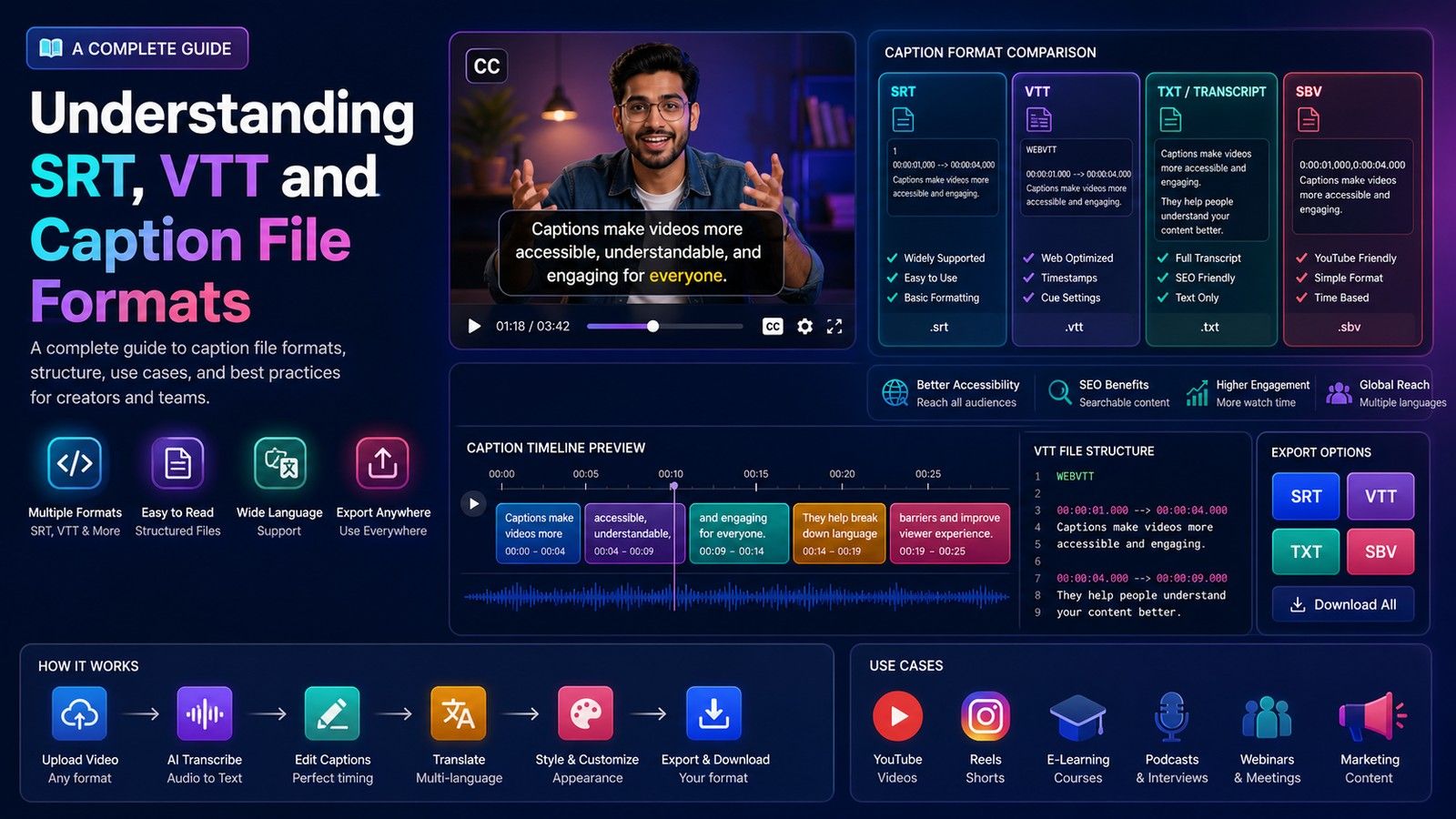
To burn subtitles into a video online you need one of two things: a subtitle file (usually SRT) plus a tool that lays it onto the video and re-encodes, or just the video plus a tool that generates the captions and burns them in one step. Which route you take depends on what you already have. If someone sent you an SRT, use a burner that accepts files: HappyScribe's add-subtitles tool and Clideo both do, as of 18 October 2026. If you have only the video, a generate-and-burn tool such as CapsAI or Caption X skips the file entirely.
This guide explains the difference between open and closed captions in two paragraphs, then lays out both routes with what each online tool takes, what its free tier allows and whether it marks the export.
Open captions vs closed captions, briefly
Burning subtitles into a video makes them open captions: the text becomes pixels in every frame. They show on every player and every platform, in exactly the font, size and position you chose, and nobody can turn them off. That permanence is the point for a muted social feed, and the drawback for a viewer who does not want them or needs another language.
Closed captions are the opposite: a separate text track (an SRT, VTT or similar file, or a track embedded in the container) that the player draws on demand. The viewer toggles them, can often pick a language, and the player decides how they look. YouTube, Vimeo and most TV and streaming players use closed captions; Instagram, TikTok and LinkedIn feeds mostly rely on burned-in text. The full comparison is in burned-in captions vs closed captions. If you need both, keep the SRT for the platforms that take a file and burn a copy for the ones that do not.
Route 1: you already have an SRT (or VTT, or TXT)
A subtitle file has the text and the timings. The burner's job is layout and encoding. Three checks before you upload:
- Format. Most burners want SRT. If you have a VTT, run it through the VTT to SRT converter; if a tool wants VTT, use the SRT to VTT converter. A plain transcript becomes a timed file with the TXT to SRT generator. The differences are explained in SRT vs VTT vs TXT.
- Sync. If the file came from a different cut of the video, the timings will be off. Paste it into the subtitle sync checker first, or shift the whole file by the offset it reports.
- Line length. A file written for a TV screen can have lines too long for a phone. Split anything over about 42 characters before you burn it.
Then pick a burner that takes files. From the US results for "burn subtitles into video online", read 18 October 2026:
- HappyScribe, [Add Subtitles to Video](https://www.happyscribe.com/tools/add-subtitles-to-video). The tool page describes two inputs: "Use our advanced speech recognition for fast and accurate auto subtitles, or upload your own subtitle file", with SRT, VTT and TXT upload mentioned. Output is a .SRT, .VTT or .STL file or a burned-in video. The free tier is described as "limited minutes" on this page; HappyScribe's English subtitles page puts it at "The first 10 minutes are free and there's no file limit". The page makes no statement about a watermark either way.
- Clideo, [Add Subtitles to Video](https://clideo.com/add-subtitles-to-video). "Subtitle a video manually or with an SRT file", and "Clideo adds hardcoded subtitles." You upload the video and the SRT, edit text and timing, style the font and export. The stated free limit is file size: "The tool accepts 500 MB for free." The page does not say whether free exports carry a watermark, so run a short test before a client file.
- Caption X. Its burn page is a generator (see Route 2), but it points to a separate "SRT to MP4 overlay" tool for people who already have a file. Caption X says free exports carry a small watermark that Pro removes.
- Kapwing, SRT to MP4. We could not read the tool page on 18 October 2026 because it renders only in JavaScript. Kapwing's subtitles page, read the same day, says free-account exports contain a watermark, and SRT, VTT and TXT download are available from the editor.
Whichever burner you use, open the exported MP4 and scrub to the last second. A watermark, if there is one, is sometimes only in the final frames.
Route 2: you have only the video
If there is no subtitle file, you can either make one first and go back to Route 1, or use a tool that transcribes and burns in one pass. The one-pass tools in the same results:
- CapsAI. Upload an MP4 or MOV up to 10 minutes (500 MB on a free account, up to 10 GB on paid packs). It transcribes in one of 11 spoken languages (English, Hinglish in Roman script, Hindi, Bengali, Telugu, Marathi, Tamil, Urdu, Gujarati, Kannada, Punjabi), you edit every word, timing and style in the browser, and it exports one MP4 with the captions burned in, 1080p on Starter and up to 4K on Creator and Pro. It does not accept an SRT upload and does not export one, so it is Route 2 only. Start at burn subtitles to video.
- Caption X. Its burn subtitles page says it "auto-generates the captions and hardcodes them permanently into the frames" and "No SRT file needed." The dropzone takes a video under 2 GB (its studio page adds "up to 10 min"). Free exports "carry a small CaptionX watermark (Pro removes it)". The page says the burn-in happens in the browser and audio is sent to its transcription service.
- HappyScribe (above) covers this route too, since its tool can generate the subtitles itself.
- vidocu.ai. The home page lists a free "Subtitle Burner" tool described as "Burn captions into video" alongside AI subtitle generation, but as of 18 October 2026 it does not say whether an SRT can be uploaded, give free limits or state a watermark policy.
- cutfa.st. This is a clipping tool that uses subtitles as the editing interface ("Highlight subtitles to pick scenes"). Its free plan is "3 free edits per day", with pay-as-you-go at $30 and a lifetime plan at $399. Whether the export has burned-in subtitles is not stated on the page.
The tools compared
| Tool (18 Oct 2026) | Takes an SRT upload | Generates captions | Free limit stated | Watermark on free export |
|---|---|---|---|---|
| HappyScribe Add Subtitles to Video | Yes (SRT, VTT, TXT) | Yes | Limited minutes; English page says first 10 minutes free | Not stated |
| Clideo Add Subtitles | Yes (SRT) or type manually | Separate tool | 500 MB per file | Not stated |
| Caption X burn page | No (separate SRT to MP4 tool) | Yes | Under 2 GB; studio says up to 10 min | Yes, small watermark; Pro removes |
| Kapwing SRT to MP4 | Page not readable; editor exports SRT/VTT | Yes (subtitles page) | Not read | Yes, on free accounts (subtitles page) |
| vidocu.ai Subtitle Burner | Not stated | Yes | Not stated | Not stated |
| cutfa.st | Not stated | Auto captions tool listed | 3 free edits per day | Not stated |
| CapsAI | No | Yes | 3 free minutes; 500 MB; 10 min per video | Watermark-free export comes with every paid pack |
"Not stated" means the page does not say, not that the answer is no.
Settings that matter when you burn
Burning is a one-way step, so get these right before you export:
- Resolution. Export at the source resolution. Some free tiers downscale to 720p; check the file, not the preview.
- Frame size. Burn after you have cropped to the final aspect ratio. Captions burned onto a 16:9 master and then cropped to 9:16 are cut off at the sides.
- Safe zone. On Reels, Shorts and TikTok the bottom and right edges are covered by the UI. Position text above it.
- Two lines maximum, and a reading speed a phone viewer can keep up with. The reading speed checker flags dense blocks before they are permanent.
- Encoding. Most online burners output H.264 MP4, which every platform accepts. A MOV from an iPhone is accepted by most burners as it is.
Which route should you take?
- You have an SRT from a transcription service or a translator: Route 1, with HappyScribe or Clideo. Convert and sync-check the file first.
- You need the SRT as well as a burned copy: HappyScribe, which exports the file and can burn in, or Caption X's two tools.
- You have only the video and the speech is English or one of ten Indian languages: Route 2 with CapsAI, which gives you a browser editor for the words before the burn.
- You have only the video and want a quick free export and do not mind a watermark: Caption X.
- You need captions in a language none of these list: make the SRT with a transcription tool that supports it, then use Route 1.
What to do next
If you have the file, pick a Route 1 burner and run the sync check first. If you have only the video, upload it at burn subtitles to video: new accounts get 3 free minutes, one-time packs start from $4 (₹49 in India, €4 in the euro area), and watermark-free export comes with every paid pack.