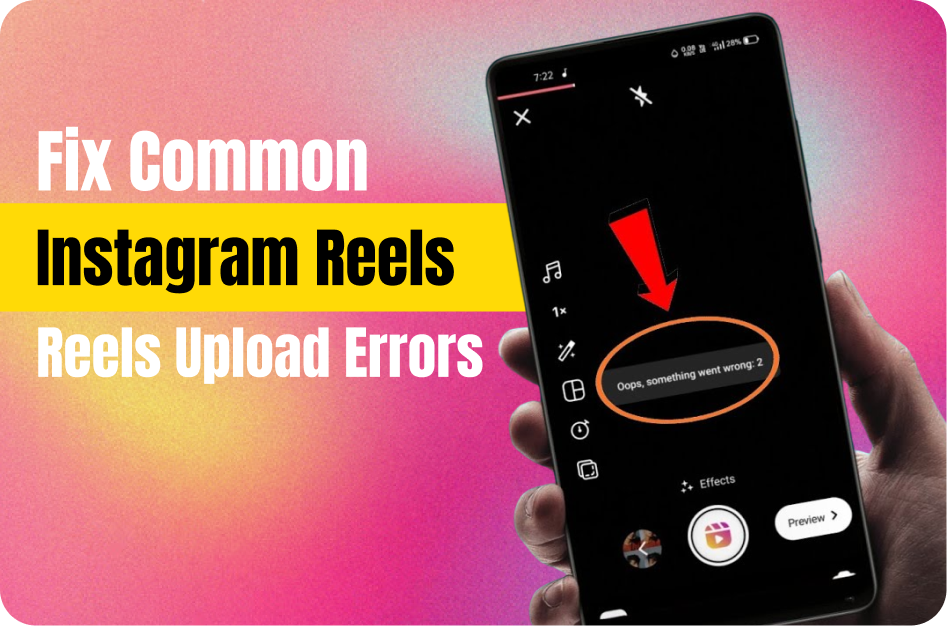
Instagram Reels are a powerful way to boost engagement, but technical issues can hinder your reach. If your Reel fails to upload, gets stuck, or shows a "Video Failed to Process" message, follow this step-by-step guide to troubleshoot effectively.
1. Check Internet Connection and Clear App Cache
A weak connection or corrupted cache data can interrupt the upload process.
- Ensure you are connected to a stable Wi-Fi or strong mobile network.
- Force-close the Instagram app.
- On Android, go to Settings > Apps > Instagram > Storage > Clear Cache.
- On iPhone, uninstalling and reinstalling Instagram can serve the same purpose.
2. Update Instagram to the Latest Version
Outdated app versions often contain bugs that affect uploads.
- Go to the App Store (iOS) or Google Play Store (Android).
- Search for Instagram and tap Update if available.
3. Ensure Correct Video Format and Specs
Uploading unsupported formats can cause Instagram to reject your Reel silently or show a vague error.
- Recommended Specs:
- Format: MP4 or MOV
- Aspect Ratio: 9:16
- Resolution: Max 1080p
- Duration: Under 60 seconds
- Use editors like CapCut, InShot, or VN to re-export the video if it freezes or glitches.
- You can also re-encode using HandBrake (free tool) with Instagram-friendly presets.
4. Check for Copyrighted Audio Issues
Instagram may block or mute your Reel if it detects copyrighted music.
- Avoid using music that’s not licensed for your region or account type.
- Replace flagged tracks with royalty-free music or Instagram’s in-app audio library.
- Trim out the flagged audio section if possible.
5. Review Account Limits and Activity
Instagram can temporarily restrict uploading for newer accounts or users who post excessively.
- Avoid uploading too many Reels in quick succession.
- If restricted, wait a few hours or a day before trying again.
6. Interpret Instagram Error Messages
Instagram's errors like:
- "Try Again"
- "Video Failed to Process"
are generic. Try these additional steps:
- Restart your device.
- Log out of Instagram and log back in.
- Use Instagram’s Help > Report a Problem to notify support.
- Try uploading from a different device.
7. Re-Edit and Re-Export the Video
If nothing else works:
- Open your video in a video editor.
- Make a small edit (like trimming 1 second).
- Export again with correct specs.
- This often resolves hidden format or encoding issues.
Pro Tip: Always preview your Reel inside the Instagram editor before uploading. This helps catch any issues with orientation, aspect ratio, or glitching.
By systematically addressing these issues, you can fix most Instagram Reels upload errors and get back to sharing content with your audience smoothly.