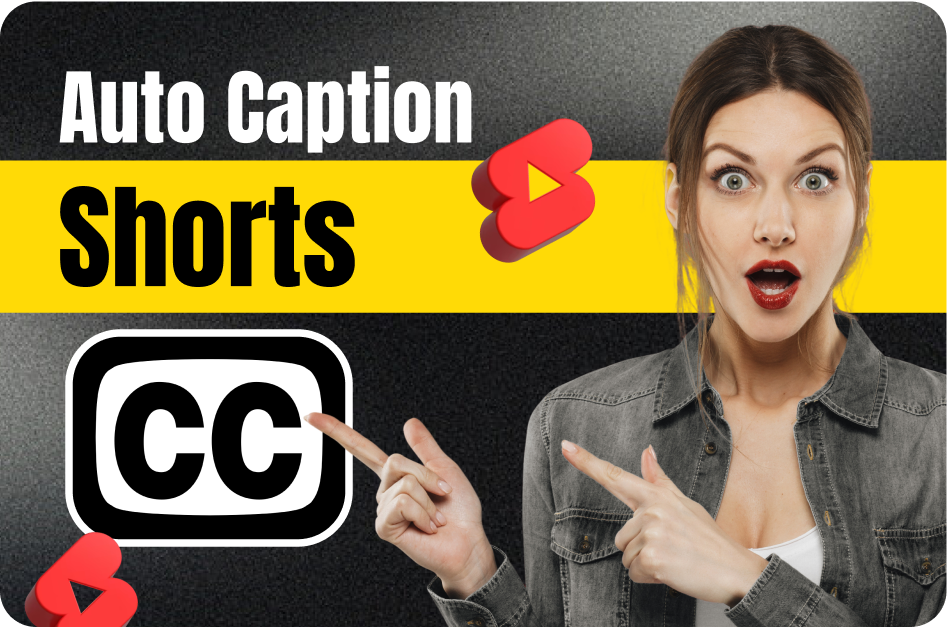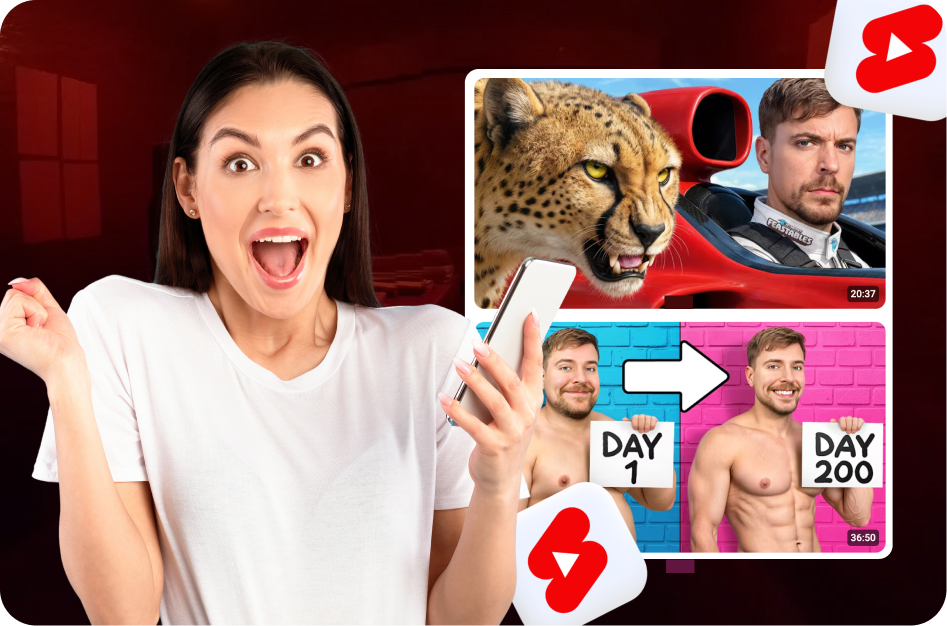
Creating eye-catching thumbnails is a game-changer when it comes to increasing visibility and click-through rates on YouTube Shorts. While Shorts often autoplay on mobile without a visible thumbnail, thumbnails still matter for desktop viewers, playlists, and algorithm signals. Here’s how to use thumbnail templates smartly, even for Shorts.
Why Thumbnails Still Matter for YouTube Shorts
YouTube Shorts may autoplay in feeds, but thumbnails show up:
- On your YouTube channel
- In search results
- In suggested video carousels
- On playlists
Having a branded, recognizable thumbnail increases your chances of getting clicks even outside the Shorts feed.
What Are Thumbnail Templates?
Thumbnail templates are pre-designed layouts that can be customized with your text, images, and brand colors. These ensure consistency across your content and save a lot of time in post-production.
Key Elements in a Good Thumbnail Template:
- Bold, readable fonts
- High contrast
- Limited text (2-5 words max)
- Brand logo or watermark
- Subject close-up (face or object)
Best Tools to Use
Here are some popular tools that provide ready-made thumbnail templates:
- Canva: Great for drag-and-drop templates, even free plans have Shorts-sized options.
- Adobe Express: Offers creative, professional layouts.
- Snappa: Simple and effective for quick designs.
- Fotor: Good for stylized, beginner-friendly templates.
Pro Tip: Use CapsAI.co for Video Branding & Captions
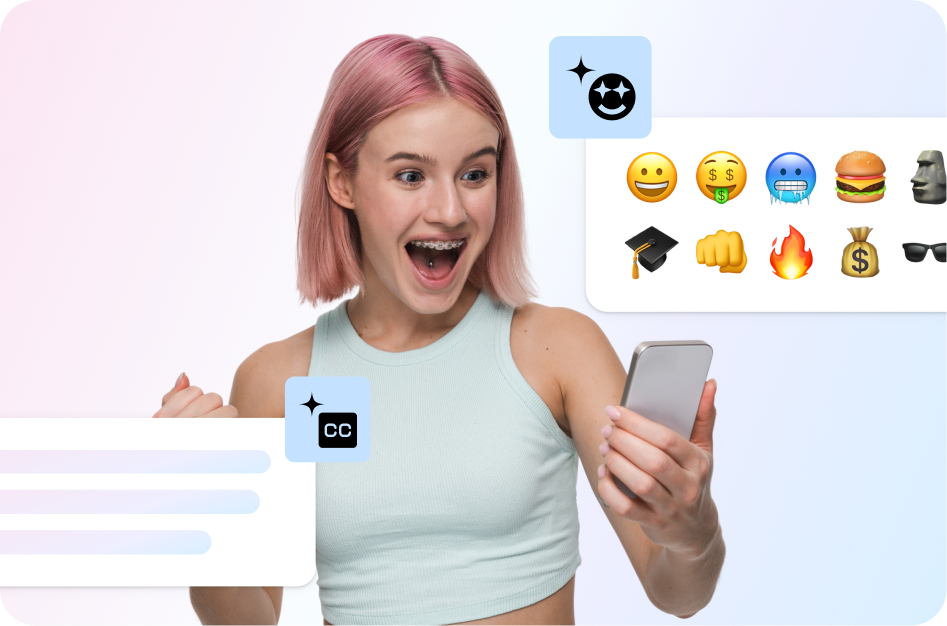
Even though you’re designing thumbnails separately, your video needs to match the thumbnail's tone and clarity. CapsAI.co helps creators auto-generate stylish captions, emoji effects, and dynamic text that match your branding and regional language preferences. Having consistent visuals across your thumbnail and subtitles boosts viewer trust and recognition.
Step-by-Step: Customizing a Template
- Pick a Template: Choose one that aligns with your content theme (tech, comedy, motivation, etc.).
- Add Your Branding: Include your logo, channel colors, and fonts.
- Choose a Strong Image: Add a close-up of your face or the most expressive moment.
- Keep Text Short: Use action words or questions ("Wait for it!" / "How did this happen?").
- Export in HD: Make sure to save in 1280x720 resolution (16:9).
- Upload Manually: Go to YouTube Studio > Content > Edit Video > Upload Custom Thumbnail.
Final Thoughts
Even in Shorts, your thumbnail acts like a movie poster. It helps set expectations and establish your personal style. Pair that with branded captions via CapsAI.co, and you’re giving your Shorts the best shot at standing out in a crowded space.
For creators in India targeting regional audiences, using regional language subtitles with consistent thumbnail branding can be the secret growth hack for 2026.
Start now with CapsAI.co - subtitle smarter, grow faster.