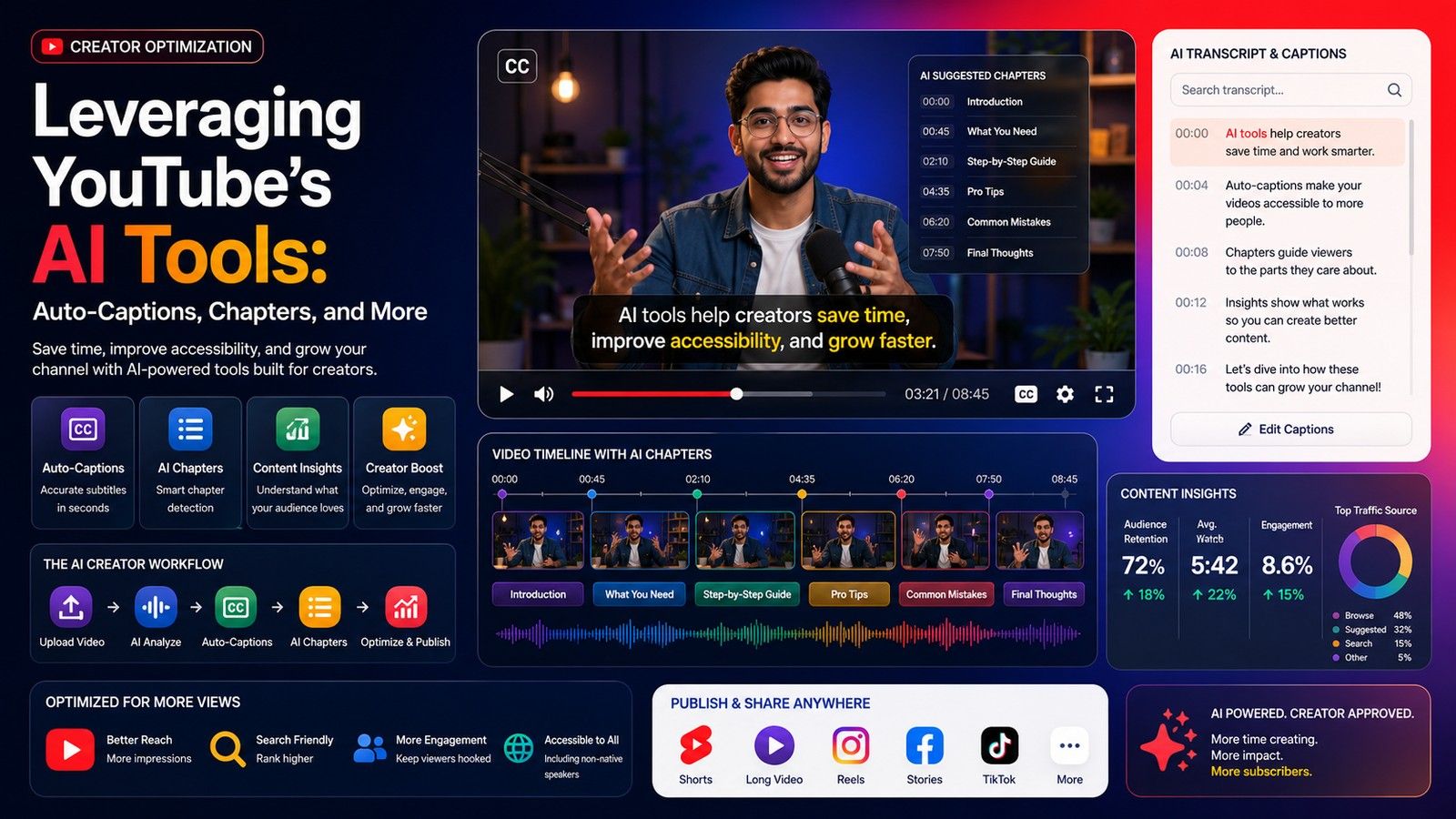
Here is how to turn off AI subtitles on YouTube, in one pass. For the captions on the video you are watching, click or tap the Closed captions button once. For every video, change the default: on Android, tap your profile picture, then Settings, then Captions, and turn off Show captions. On an iPhone or iPad the YouTube app follows the device setting, so open Settings, Accessibility, Subtitles & Captioning, and turn off Closed Captions + SDH. On a computer, open your profile picture, Settings, Playback and performance, and turn off the always-show-captions switch. If the captions are in a language the creator never wrote, you are seeing Auto-translate, and the fix is in the player under More, Captions, where you pick the original language.
If the voice itself sounds machine-made, that is a third feature, auto dubbing, and it is audio, not subtitles. Open the player Settings, choose Audio track, and pick the original language. Then set your preferred languages under Settings, Languages, so YouTube defaults to the original audio next time. Everything below separates the three AI features, gives the viewer controls for each on desktop, Android, iPhone and TV, and then shows creators how to remove automatic captions and dubs from their own videos.
The three AI things YouTube does
People say "AI subtitles" for three different features. Each has its own switch.
| Feature | What it is | Who can turn it off |
|---|---|---|
| Automatic captions | A caption track YouTube makes from the audio with speech recognition | The viewer, per video or by default; the creator, by deleting the track |
| Auto-translated captions | A machine translation of an existing caption track into a language the creator never added | The viewer, by picking the original language |
| Auto-dubbed audio | A translated voice track generated from the original audio, labeled auto-dubbed in the description | The viewer, per video or by preferred language; the creator, per channel or per video |
Is YouTube using AI for subtitles? Yes. YouTube Help's automatic captioning page says YouTube "can use speech recognition technology to automatically create captions for your videos" and that the captions are "generated by machine learning algorithms, so the quality of the captions may vary." Auto-translate runs machine translation over whichever track exists. Auto dubbing, in YouTube Help's words, "generates translated audio tracks in different languages" and "is enabled by default for eligible creators."
If your problem is captions that will not show, show in the wrong style, or are out of sync, YouTube captions not working covers that instead.
Viewer: turn off AI subtitles on YouTube
The steps below are from the Manage caption settings page, which has separate tabs for computer, Android, and iPhone and iPad.
On a computer
- For one video, select the Closed Captions (CC) button at the bottom right of the player. Select it again to turn captions off. If the button is missing, the video has no caption track.
- For every video, click your profile picture, then Settings, then Playback and performance. The caption section has one switch that always shows captions and a second that includes auto-generated captions when available. Turn off the first to stop captions showing by default. Turn off the second to stop YouTube using its automatic track on videos the creator never captioned.
That second switch is the closest thing YouTube has to "turn off AI subtitles" for a viewer: with it off, a video with only an automatic track shows no captions unless you press CC.
On Android
- For one video, tap the player once, then tap Closed captions. Tap it again to turn captions off.
- For every video, tap your profile picture, then Settings, then Captions. Turn off Show captions. YouTube Help describes this switch as the one that makes the app "always serve captions when available."
- If captions appear only when the phone is silent, tap the player once, then Settings, then Captions, and turn off the toggle next to Show when muted.
On an iPhone or iPad
- For one video, tap the player once, then tap Closed captions. Tap again to turn them off.
- For every video, the YouTube app reads the device setting. Open the iPhone Settings app, tap Accessibility, then under Hearing tap Subtitles & Captioning, and turn off Closed Captions + SDH. YouTube Help lists this as the way to have captions show whenever they are available, so turning it off is the way to stop that.
- Show when muted is in the same place as on Android: tap the player once, Settings, Captions, then the Show when muted toggle. YouTube says the setting is available on mobile and tablet, so there is no equivalent on a computer.
On a TV or game console
The TV and console page gives one path: pause the video, open Captions, choose the language, and open Caption style for the look. The page does not name a separate off control, so captions are turned off from that same Captions menu. If the icon shows but cannot be selected, the video has no captions. Apple TV, Fire TV and other boxes also have a system accessibility caption setting that the YouTube app can follow, so check it if captions keep returning.
Viewer: turn off auto-translated subtitles
Auto-translate shows when the caption language does not match any track the creator made. YouTube Help's language steps are: at the top right of the player, open More, tap Captions, and select a language. The list shows the tracks the creator uploaded or YouTube generated. "If your language isn't listed, click Auto-translate, then select a language." So to stop auto-translation, pick a language from the top of that list rather than from under Auto-translate. YouTube remembers your choice for later videos, which is also why a translated track you picked once keeps coming back.
A translated track is only as good as the track underneath it, so an automatic caption track with wrong words produces a wrong translation.
Viewer: turn off auto dubbing and hear the original audio
Auto dubbing replaces the voice, so no caption setting touches it. YouTube Help gives viewers two controls, and no global off switch is documented.
- Per video. Open the player Settings, choose Audio track, and select the original language. YouTube's preferred language page says this option appears only when the video has other languages available, so a video with no Audio track menu was never dubbed.
- By default. Tap your profile picture, then Settings, then Languages, then Preferred languages, and add the languages you understand. The same page says content with original audio in one of your preferred languages "will not be translated and will default to the original audio."
Videos carrying generated tracks are marked "auto-dubbed" in the description, so check there when a voice sounds off. On a TV, YouTube Help has no separate audio track steps; the player's settings menu is the place to look, and your preferred languages apply once you are signed in.
Does YouTube automatically turn on subtitles?
Only when something tells it to. Captions seem to switch themselves on for four reasons, each with its own control.
- The device setting. On an iPhone, Closed Captions + SDH under Accessibility makes every supporting app show captions. On Android, the system Caption preferences do the same, and the YouTube app has its own Show captions switch on top.
- The account default. The always-show-captions switch on a computer, or Show captions in the Android app, is on. Sign in on each device, because the account setting follows you.
- Show when muted. On mobile, YouTube shows captions when the sound is off, so a video that starts muted in the feed shows text until you unmute. The Show when muted toggle under player Settings, Captions, turns this off.
- The creator's choice. A creator can upload a video with the words drawn into the picture. Those are not captions at all, and no setting removes them.
If captions still return on an Apple TV after all four checks, the Apple Support forum has an open thread about the tvOS app ignoring the setting, with no fix beyond checking the tvOS accessibility caption setting and the app menu again.
Can you avoid AI on YouTube?
Partly. As a viewer you can stop seeing automatic captions, stop auto-translation and hear the original audio with the controls above. You cannot stop YouTube generating those tracks in the background, and YouTube documents no single setting that disables all three. A creator has more control, because the tracks live on the channel.
Creator: delete automatic captions in YouTube Studio
YouTube Help's Edit or remove captions page gives the steps:
- Sign in to YouTube Studio and select Subtitles from the left menu.
- Click the video.
- For the language you want to remove, in the Subtitles column select Options, then Delete.
- Confirm with Delete captions.
The page no longer describes an Unpublish step for captions, which is the wording older guides use. Delete is the documented control, and it stops the track showing on your video. If you want correct words rather than no words, use Edit instead: for automatic captions select Duplicate and edit, then Continue, fix the lines, and Publish. YouTube Help says a new caption track with your revisions is generated, and the review flow is covered in does YouTube auto-generate subtitles. If your video has no automatic track at all, YouTube auto captions missing or late explains the reasons.
YouTube generates the automatic track for each upload on its own, so deleting it on one video does not stop the next upload getting one.
Creator: turn off auto dubbing for a channel or a video
Auto dubbing is on by default for eligible channels, so you may already have dubbed tracks live. The automatic dubbing page documents these controls.
For the whole channel, in the YouTube Studio app: tap your profile picture, then Settings. Under Content, tap Automatic dubbing, and turn it off. The same screen has a Publish manually option if you would rather review each dub before viewers hear it.
On a computer: in YouTube Studio, open Settings, then Channel, then Advanced settings. The checkbox is called Allow automatic dubbing. Clear it and click Save. Channels without the feature see an Enable control there instead.
For one video: YouTube Help is explicit that managing dubs, including previewing, publishing or deleting them, is only available in YouTube Studio on a computer. Open Content, select the video, and click Languages. Hover over the language, click the icon in the Audio column, and choose Publish, Unpublish or Delete. An unpublished dub can be republished or deleted later. A deleted dub is gone, and YouTube says you cannot republish it. Dubs cannot be edited; if one is mistranslated, the documented fix is to correct the video's original language so the dubs regenerate, or to delete the dub and upload your own audio track for that language.
A video is not eligible for dubbing when it runs over 120 minutes, has little or no speech, is in an unsupported original language, fails language detection, has speech that is too fast, or contains copyrighted content.
Which Indian languages does YouTube auto dubbing support?
As of 11 November 2026, YouTube Help's table of supported languages for automatic dubbing includes seven languages spoken in India: Bengali, Hindi, Malayalam, Punjabi, Tamil, Telugu and Urdu. An English video can be dubbed into six of them, Bengali, Hindi, Malayalam, Punjabi, Tamil and Telugu. In the other direction, videos in all seven are dubbed into English, and Hindi videos are also dubbed into Bengali.
These rows are copied from the automatic dubbing page, with the language names and asterisks as YouTube lists them:
| Original language | Language(s) available for automatic dubbing |
|---|---|
| English | Arabic, Bengali, Dutch, French*, German*, Hebrew, Hindi*, Indonesian*, Italian*, Japanese, Korean, Malayalam, Polish, Portuguese*, Punjabi, Russian, Spanish*, Tamil, Telugu, Ukrainian |
| Hindi | Bengali, English* |
| Bengali | English* |
| Telugu | English* |
| Tamil | English |
| Malayalam | English |
| Punjabi | English |
| Urdu | English |
Three things follow from the table:
- Hindi to Bengali is the only pair between two Indian languages. There is no Hindi to Tamil or Tamil to Telugu dub on the list; every other Indian-language row goes to English only.
- Marathi, Gujarati and Kannada are not in the table, as an original language or as a dub language. Odia and Assamese are not there either. Urdu appears only as an original language, dubbed into English.
- The asterisk marks expressive speech. YouTube's note says those languages support expressive speech, "which replicates the original audio's pitch and intonation", and adds that "even if a language supports expressive speech, it won't always be used". Among the Indian languages, Hindi carries the asterisk as a dub of English videos, and the English dubs of Hindi, Bengali and Telugu videos carry it too.
The list is not fixed. YouTube says it is "gradually expanding support for new languages and improving dub quality", so "some channels might have access to new languages sooner". For one video, the Languages page in YouTube Studio shows which languages are available for it, including experimental ones, so check there before you promise viewers a Tamil or Telugu track.
What a creator can do instead
Every control above is a switch a viewer can flip. Two options do not depend on viewer settings.
Upload your own caption track. In Studio, under Subtitles, add a file or type the captions. A creator-made track sits above the automatic one in the language list, and YouTube serves it to viewers who have captions on. It is still closed captioning, so a viewer with CC off sees nothing.
Burn the captions into the video. Captions drawn into the frames show on every device, in every app and embed, with no CC button and no AI track in between. CapsAI does this: upload an MP4 or MOV up to 10 minutes, pick the spoken language from 11 options including English, Hindi and Hinglish, correct the timed draft against the audio, choose a style, and export an MP4 with the captions burned in. The YouTube subtitle generator handles landscape uploads, the YouTube Shorts subtitle generator handles vertical ones, and burn subtitles to video explains the trade-offs against a caption track.
Be clear about the limits. CapsAI does not take a YouTube link, does not upload a caption track to your YouTube video, does not export SRT or VTT files, and does not translate or dub. Its output is one captioned MP4. YouTube will still generate an automatic caption track and, if your channel is eligible, dubs for that upload, and the Studio steps above remove either. New accounts get 3 free minutes to start. Packs are $4, $9 and $19 (₹49, ₹99 and ₹299 in India, €4, €9 and €19 in the euro area), paid once, and watermark-free export comes with every paid pack. The auto subtitle generator page has the same uploader for other platforms.
Every control in one place
| You want to | Where | Control |
|---|---|---|
| Hide captions on this video | Player, any device | Closed captions button |
| Stop captions by default, computer | Profile picture, Settings, Playback and performance | Always-show-captions switch and the auto-generated captions switch |
| Stop captions by default, Android | Profile picture, Settings, Captions | Show captions |
| Stop captions by default, iPhone or iPad | Device Settings, Accessibility, Subtitles & Captioning | Closed Captions + SDH |
| Stop captions appearing when muted | Player Settings, Captions, mobile only | Show when muted |
| Stop auto-translated captions | Player, More, Captions | Pick a listed language, not one under Auto-translate |
| Hear the original voice on this video | Player Settings | Audio track, choose the original |
| Default to original audio | Profile picture, Settings, Languages | Preferred languages |
| Remove auto captions from my video | Studio, Subtitles, video, Options | Delete, then Delete captions |
| Stop dubbing on my channel | Studio app, Settings, Content, or Studio, Settings, Channel, Advanced settings | Automatic dubbing toggle, or Allow automatic dubbing checkbox |
| Remove a dub from my video | Studio on a computer, Content, video, Languages, Audio column | Unpublish or Delete |
 By Aniket TeliPublished 28 Oct 2026