- Use Capsai Auto Subtitle Generator
Visit https://capsai.co/, upload your Reel or paste its URL, select your subtitle language (Hindi, English, or Hinglish), and click Generate Subtitles. review and edit timing or text in the browser editor, then download SRT or burn captions into your video. - Apply Instagram’s Captions sticker
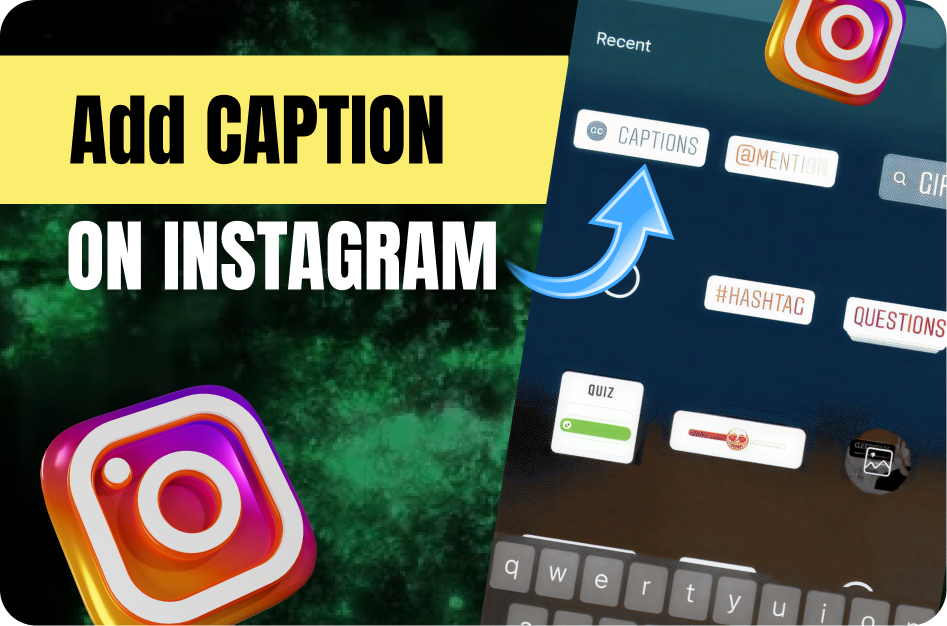
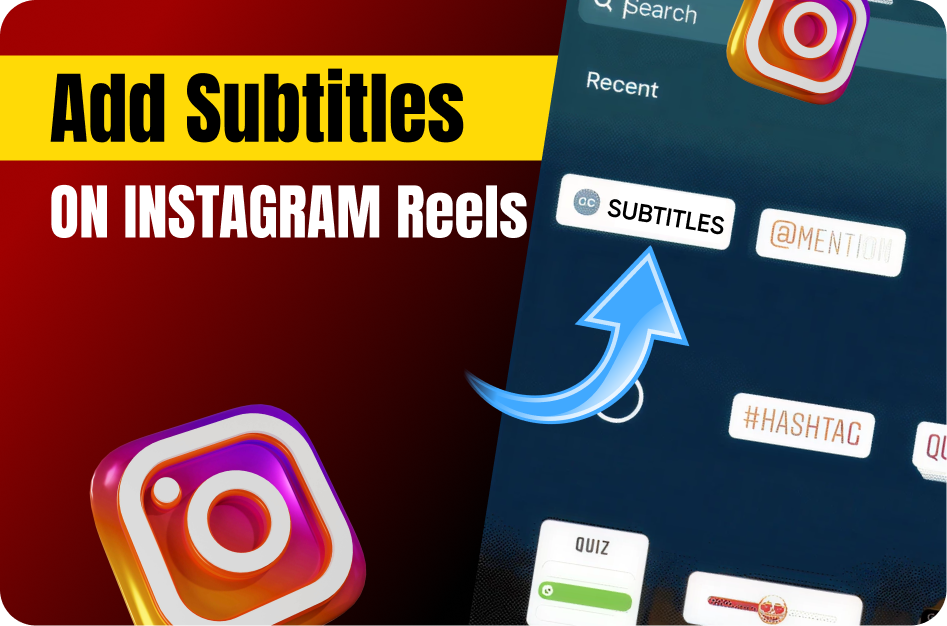
Record or upload your Reel in the Instagram app, tap the sticker icon, choose Captions, and let Instagram auto‑transcribe. review the text and tap Edit Captions to fix any errors before sharing. - Manually add text layers in the Reels editor
After recording, tap the “Aa” icon, type your subtitles line by line, set each text block’s duration by dragging its edges on the timeline, and position them for maximum readability. - Use a third‑party app like CapCut or InShot
Export your Reel draft to CapCut or InShot, use their auto‑subtitle feature to generate captions, adjust styling and timing in the timeline, then export a burned‑in MP4 for upload back to Instagram. - Upload SRT via Facebook Creator Studio
If you prefer separate subtitle files, generate an SRT from Capsai, go to Facebook Creator Studio → Create Post → Instagram Feed & IGTV → Add Video → under Captions upload your SRT, then publish to Reels. - Preview and adjust for legibility
Always watch your subtitled Reel on both iOS and Android to confirm timing, positioning, and font size work across different screen sizes before hitting Post.
Multilanguage
How to Add Subtitles to Instagram Reels (Auto and Manual Methods)
Learn add subtitles to instagram reels (auto and manual methods) with our complete 2026 guide. Step-by-step tutorials, pro tips, and AI tools for creators.
See Your Subtitles in Action
Try a style and language for your next video.