Search for "caption generator for Instagram Reels" and the results argue with each other. Half of them (Pallyy, Hootsuite and other social tools) generate the written post caption: the text and hashtags under your reel. The other half (Choppity, Captions, CapsAI and similar) generate on-video captions: the words that appear in the frame as you speak. Both are called captions, both matter, and they are made with different tools.
This guide separates the two, explains Instagram's own closed captions and Captions sticker so you know what the app already does, covers the Reels safe zone that decides where on-video captions can sit, and ends with which kind matters for which goal.
The two meanings of "Reels caption"
| Written post caption | On-video captions | |
|---|---|---|
| What it is | Text under the reel, with hashtags | Words shown in the frame as you speak |
| Made with | A writing tool or your own keyboard | Instagram's closed captions, the Captions sticker, or a caption tool that burns them in |
| Job | Context, search, call to action | Following speech on mute, retention, accessibility |
| Shows when sound is off | Yes, but says what the reel is about, not what is said | Yes, word for word |
| Travels with the video file | No | Burned-in yes; Instagram's layer and sticker no |
Read 18 October 2026.
The written post caption
The post caption is the text you type on the final screen before sharing. It is where a hook line, context, a question for the comments and your hashtags live. Instagram's search and recommendations read it as text, so a specific post caption helps the reel reach people searching for the topic.
A "Reels caption generator" in this sense is a writing tool. It takes a description of the reel and drafts the text and hashtags. There is nothing wrong with that, but it does nothing for a viewer trying to follow what you are saying, and it stays on Instagram: download the reel and the post caption is gone. If this is what you were searching for, you want a copywriting tool, not a video tool, and the rest of this guide is about the other kind.
Instagram's own on-video captions: closed captions and the Captions sticker
Instagram gives you two built-in ways to put words on a reel, and it is worth knowing both before you reach for a tool.
Closed captions (the toggle)
Instagram Help, read 18 October 2026, says "Instagram uses speech recognition technology to automatically create closed captions", and that when you turn them on "the speech in the reel is automatically written out as text at the bottom". The path for a new reel, from the same page: tap Create, tap Reel, select a video, tap Next, tap Next again, tap More options, then use the toggle next to Enable closed captions. A second toggle, Translate closed captions, controls whether viewers in other languages see a translated version.
For a reel you have already posted, open it from your profile, tap Options, tap Edit, then More options, and the same two toggles are there. Instagram adds that "Closed captions on your previously posted reels will default to your caption settings on Instagram".
Two caveats from Instagram's parent article on the feature: "This feature isn't available on computers" and "This feature is only available in some locations". Viewers also control the layer from their side, through the accessibility and translation settings or on the video itself, so closed captions are a layer the viewer can hide.
The Captions sticker
The Captions sticker is the second built-in option: a sticker you add in the reel editor that transcribes your speech and shows it as styled text in the frame. Instagram's help article on reading the sticker in its original language confirms it exists and that its text can be auto-translated for viewers, with a Translate text on reels toggle to switch that off.
The sticker gives you a handful of Instagram's text styles and lets you move the text. It is still an Instagram object: it exists in the Instagram editor, and its look and placement are limited to what the sticker offers.
What the built-in options do not do
- They do not give you your own fonts, colors, outlines, word-by-word highlighting or emoji sync.
- The closed-captions layer can be hidden by the viewer, and it is not available everywhere.
- Neither one goes with the file. Post the same clip to TikTok or YouTube Shorts and you start again.
- Both are per-language features. Mixed speech such as Hinglish, where Hindi and English switch inside a sentence, is not a language option.
Burned-in captions from a caption tool
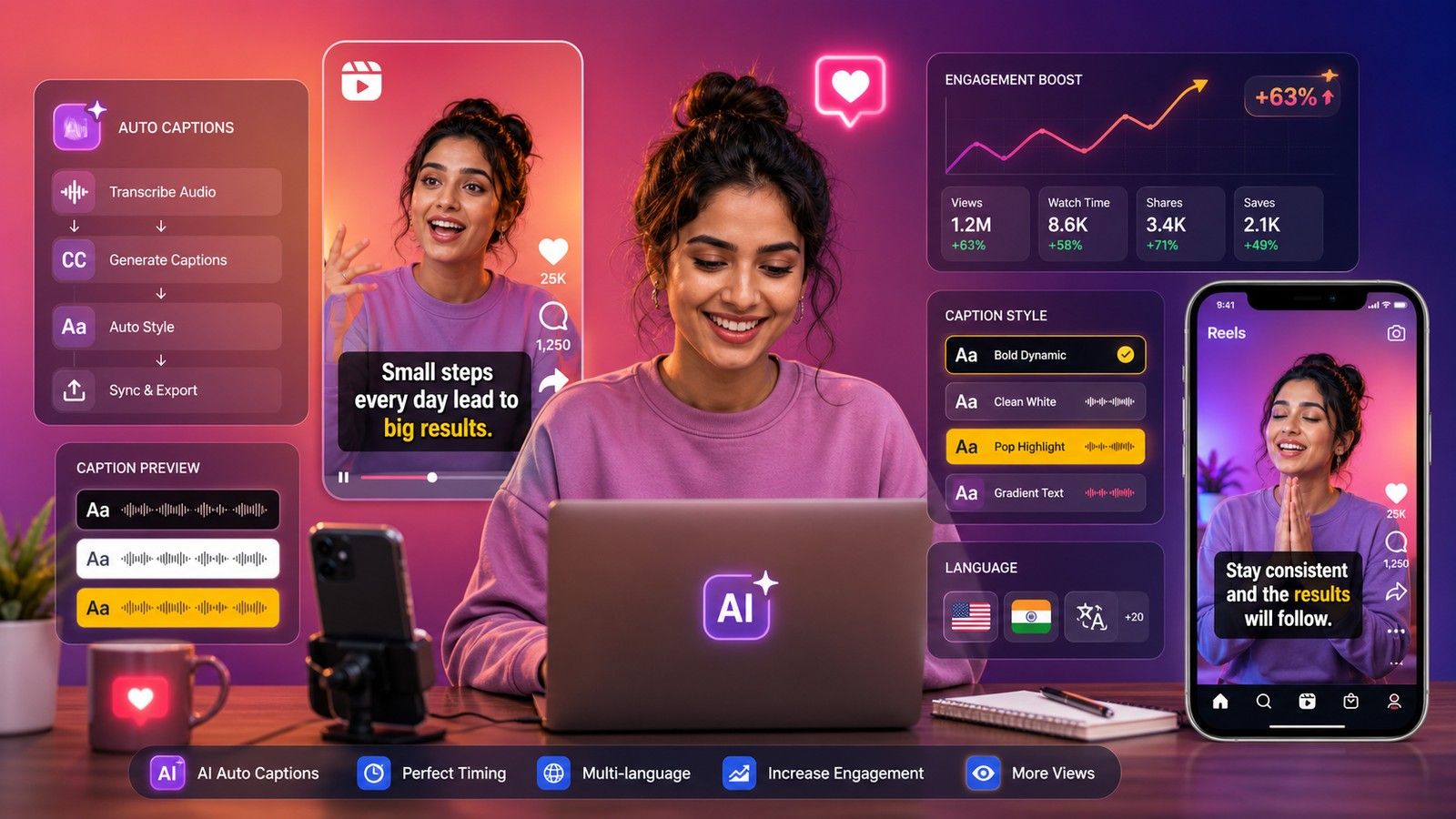
Burned-in captions, also called open captions, are rendered into the video before you upload. This is what Choppity, Captions and CapsAI mean by a Reels caption generator, and it is what the big caption styles on Reels are: bold centered phrases, one word at a time, a highlight that moves with the speech. The format difference is explained in burned-in captions vs closed captions.
Because they are pixels:
- They look the same on every phone and in every app.
- They cannot be hidden, which keeps viewers on mute reading.
- They travel with the file to TikTok, Shorts, WhatsApp and your website.
- You decide the font, size, color, position, grouping and animation.
The cost is permanence. A wrong word in Instagram's closed captions is an edit; a wrong word burned in is a re-export. Read the draft before you render.
The Reels safe zone, and why on-video captions must respect it
Instagram draws its own interface over the bottom and right of a reel: your username and post caption at the bottom left, the like, comment, share and audio buttons stacked on the right, and the navigation bar below. Captions placed in those areas are covered, and a caption that is covered on the app's own surface is worse than none.
Instagram Help says a reel can be uploaded with an aspect ratio between 1.91:1 and 9:16, with a minimum frame rate of 30 frames per second and a minimum resolution of 720 pixels (read 18 October 2026). Full-screen reels are 9:16, and on a 9:16 frame the safe area for captions is roughly the middle band: below the top edge where the camera notch and status bar sit, above the bottom quarter where the post caption lives, and inset from the right where the button stack is. The Instagram Reels subtitle safe zone overlays these zones on your frame so you can check placement before you export. If the same clip goes to Shorts, the YouTube Shorts subtitle safe zone shows that app's overlay.
Three placement rules that hold across reels:
- Keep captions in the lower-middle of the frame, not at the bottom edge.
- Keep lines short, one or two, so they fit inside the band; best subtitle line length for short-form video has the numbers.
- If you also switch on Instagram's closed captions, remember they sit at the bottom, so burned-in captions in the lower-middle will not collide with them.
How to burn captions into a reel with CapsAI
The CapsAI Instagram Reels caption generator runs in a phone or desktop browser.
- Export the finished reel as an MP4 or MOV, up to 10 minutes long, at 9:16.
- Upload it and choose the spoken language. CapsAI offers 11: English, Hinglish, Hindi, Bengali, Telugu, Marathi, Tamil, Urdu, Gujarati, Kannada and Punjabi. Hinglish comes out in Roman script with the English words kept as English. There is no translation; captions come out in the language spoken.
- Read the timed draft against the audio and fix names, numbers and slang.
- Pick one of 30 caption styles, then set the Vertical position slider in the Layout panel so the captions sit in the safe zone. It runs from 50% (the middle of the frame) to 90% (near the bottom); there is no left or right placement, so keep lines short to stay clear of the button stack.
- Export the MP4 with the captions burned in, upload it to Reels, write the post caption, and decide whether to leave Instagram's closed captions on as a second, toggleable layer.
CapsAI does not take an Instagram link, so upload the file. It does not export SRT or VTT, does not translate, and does not post to Instagram. New accounts get 3 free minutes to start; one-time packs start from $4 (₹49 in India, €4 in the euro area), nothing renews, and watermark-free export comes with every paid pack. The same tool puts captions on the video itself for YouTube, Facebook and LinkedIn uploads too.
Other burned-in tools exist. Choppity's tool page, read 18 October 2026, says it is free for up to an hour of video, burned-in only, with an account required to download. Whatever you try, check what the free export looks like and whether your spoken language is handled as spoken, especially for mixed speech.
When each kind of caption matters
- You want the reel found for its topic: write a specific post caption. A writing tool can draft it.
- You want viewers on mute to follow every word: burn captions into the video.
- You want deaf and hard-of-hearing viewers covered with no extra work: turn on Instagram's closed captions, and burn in readable captions too, because the layer is not available everywhere and can be hidden.
- You post the same clip to TikTok and Shorts: burn captions in once, inside all three safe zones.
- You speak Hinglish or mix languages: burn in with the mix selected as the language.
- You want a quick styled look and will only post on Instagram: the Captions sticker may be enough; check placement against the safe zone.
What to do next
Work out which caption the search result you clicked was selling. For the words on the video, export the clean 9:16 MP4, caption it with the Instagram Reels caption generator, check placement in the safe zone, and keep Instagram's closed captions on for viewers who use them.