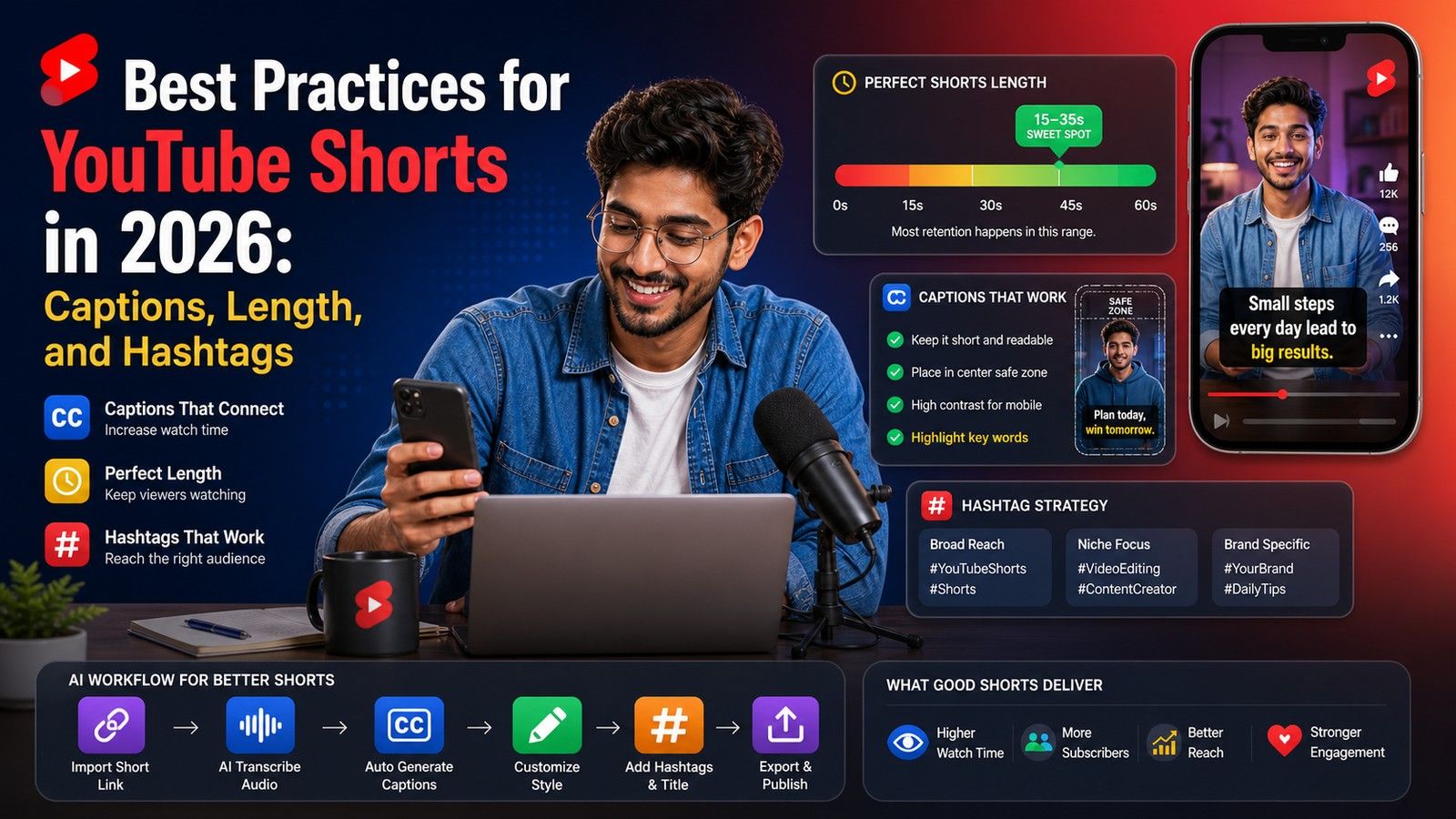
There are two answers, because "caption" means two things on YouTube Shorts. The post text under a Short is the title, and as of 20 October 2026 YouTube Help caps it at 100 characters, with a 5,000-character description behind the "more" tap. The on-screen captions inside the video have no YouTube limit at all; the limit that matters there is what a viewer can read in the second or two a line is up, which works out to about 32 to 42 characters per line, one or two lines at a time.
The table below has every number YouTube publishes for Shorts, read on 20 October 2026, with what shows before the text is cut off. After it: how to title a Short, how long an on-video caption line should be, how viewers make YouTube's captions bigger and how a creator makes burned-in captions bigger, and when to use each kind.
YouTube Shorts limits at a glance (20 October 2026)
| Field | Limit | What shows before truncation | Source |
|---|---|---|---|
| Short length | Up to 3 minutes, square or vertical | The whole Short plays | YouTube Help, what counts as a Short |
| Title | 100 characters | Not documented by YouTube; two 2026 measurements say about 40 and about 50 characters in the feed | YouTube Help, video details and create a Short |
| Description | 5,000 characters | Collapsed behind a tap; YouTube publishes no visible count | YouTube Help, video details |
| Hashtags | More than 60 and YouTube ignores all of them | Up to three appear by the title | YouTube Help, hashtags |
| Tags | 500 characters in total, commas and quote marks included | Never shown to viewers | YouTube Data API, videos resource |
| Pinned comment | One at a time; pinning another replaces it | Top of the comments once a viewer opens them | YouTube Help, interact with comments |
| On-video captions (Shorts editor) | No character limit published | Whatever fits the frame at the chosen style | YouTube Help, enhance your Shorts |
The 3-minute rule applies to videos uploaded after 15 October 2024; the what counts as a Short page says earlier uploads stay long-form. The title and description limits are the same 100 and 5,000 as any YouTube video, from the video details page; the create-a-Short page repeats "add a title (max 100 characters)". The tag limit comes from the Data API documentation, which measures the description as 5,000 bytes (emoji and non-Latin scripts use it faster) and counts a two-word tag as if quoted, so "Foo Baz" costs nine characters.
"Caption" means two things on a Short
When someone searches for the YouTube Shorts caption length, they usually mean one of these:
- The post caption. On TikTok and Instagram the text under a video is called a caption. On YouTube that field is the title, with the description underneath it, so "caption character limit" on Shorts is really the 100-character title limit plus 5,000 for the description.
- The on-video captions. The words over the footage as the person speaks: either YouTube's own caption track (closed captions a viewer can turn on and off) or text burned into the video before upload (open captions). Neither has a character cap; readability sets the limit.
How to title a Short
YouTube does not say how many title characters the Shorts player shows before it adds an ellipsis. Two third-party counts from 2026 disagree, and neither explains how it measured: a 29 April 2026 article puts the Shorts shelf and feed at about 40 characters, and a 23 May 2026 article says the first 50 show on most phones. Treat both as unverified and check a Short of your own on a phone.
The practical rule that fits both numbers:
- Put the point in the first 40 characters. If the title is cut at 40 or 50, the reader should still know what the Short is about. "Why your captions get cut off on Shorts" is 39 characters and complete on its own.
- Keep the whole title under about 60 to 70 characters. The 100-character field is the ceiling, not a target. A shorter title reads fully in search results and on the Shorts shelf, and leaves no half-sentence behind the ellipsis.
- Write a sentence, not a keyword list. "Shorts caption length limit 2026 tips" is not a title. One plain line that says what happens in the video is what viewers read while deciding whether to keep watching.
- Hashtags go in the description, not the title. YouTube's hashtags page says up to three appear by the title anyway, and that a video with more than 60 hashtags has every hashtag ignored. Three relevant ones are enough.
- Use the pinned comment for the link or the follow-up. You can pin your own comment or a viewer's, one at a time, once advanced features are on for the channel; the comments page notes that mobile viewers only see it after opening the comments, so put nothing essential there.
For the search side of titles, the existing post on title tags for Shorts SEO covers keywords; this one is only about what fits.
How long an on-video caption line should be
A Short is watched on a phone, often with the sound off, and the caption has to be read in the time the words are spoken, so the limits are about reading, not storage:
- 32 to 42 characters per line, spaces included. This is the range the character limit checker defaults to, and the range a third-party Shorts guide from November 2025 lands on as well. Below 32 the text wraps constantly; above 42 the line runs into the edges of a 9:16 frame at a readable size.
- One or two lines, never three. Two lines of 40 characters is about 14 words, which is already a lot for one glance. If the text needs a third line, split the caption in time instead; the post on subtitle line length for short-form video has the reasoning and examples.
- About 17 characters per second as a starting point. The reading speed checker flags cues above the limit you set. Fast talkers need fewer words on screen at a time, not smaller text.
- 1 to 4 words per frame for the animated style. Word-by-word and karaoke captions show a phrase rather than a sentence. In the CapsAI editor the Words per frame setting is 1, 2, 3 or 4, with 4 as the default; 1 gives true one-word-at-a-time for the styles that support it. Two to three words per frame is where most talking-head Shorts sit.
- Font size follows the frame, not the timeline. On a 1080 by 1920 export, two-line captions read well at roughly 60 to 80 pixels cap height and short impact captions at 90 to 130; the best fonts for video captions post has the ranges by format. The editor's font size slider runs from 20 to 200; check the preview at phone size, not on a monitor.
- Stay inside the safe zone. The Shorts player puts the title, channel name and description over the lower part of the frame and the like, comment and share buttons down the right edge. The YouTube Shorts subtitle safe zone tool draws those overlays over your own frame. The CapsAI editor's vertical position slider runs from 50 to 90 percent of frame height; for Shorts, keep the text in the 55 to 70 percent band so the title overlay does not cover it.
So "how long are YouTube Short captions" comes down to: as long as a viewer can read in about a second and a half, which is one or two lines of up to 42 characters, or two to four words at a time if the style animates word by word.
How to make captions bigger on YouTube Shorts
The question has a viewer answer and a creator answer.
If you are watching. YouTube's caption track obeys the device's caption settings, documented on the caption settings page as of 20 October 2026. On a computer, open Settings in the player, choose Subtitles/CC, then Options, where you can change font, color, opacity and size, the background and window color and opacity, and the character edge style. On Android, tap your profile picture, then Settings, then Captions, then "Caption size and style". On iPhone and iPad the control is outside YouTube: open the Settings app, go to Accessibility, then Subtitles & Captioning, then Style, where you can pick a size or create a new style. Those settings change the closed-caption track only. They do nothing to text that was burned into the video.
If you are the creator. You cannot make the viewer's CC track bigger for them; what you control is text burned into the footage. YouTube's own Shorts editor on iPhone and iPad has a Captions tool that adds automatic captioning and lets you "make edits to the font, text color, and make corrections", with the note that captions "are only available in certain languages and mobile devices" (the Android version of the page, re-read 22 October 2026, no longer lists the Captions tool), plus a Text tool with color, style and alignment. YouTube Studio's video clips to Shorts flow adds autocaptions "where available" with a Captions control for color, font, styling and position. Neither page documents a size control or a character limit. A caption tool that exports an MP4 gives you a size slider and exact placement, and the text is then the same size on every phone.
Closed captions vs burned-in captions on a Short
YouTube generates a caption track for Shorts the same way it does for long videos. The automatic captions page lists about 80 supported languages under the heading "Automatic captions on long-form videos and Shorts", warns that they "might misrepresent the spoken content due to mispronunciations, accents, dialects, or background noise", and says they are published automatically once ready, which may not be at upload time. You can also upload a caption file, auto-sync a transcript or type one in YouTube Studio, per the add subtitles and captions page.
What that track gives you: viewers who turn captions on get them in their own size, search can use the text, and you can fix a wrong word after posting. What it does not give you: a style, a position, a guarantee that anyone sees it, or any help on TikTok and Reels if you repost the file.
Burned-in captions are the opposite trade. Everyone sees them, at the size and in the style you chose, on every platform, and they survive a repost. They cannot be switched off or fixed after upload without re-exporting, and they count against the safe zone. Most Shorts creators do both: burn styled captions in for the sound-off viewer, and leave YouTube's track on for accessibility and search. The post on YouTube auto-captions vs burned-in subtitles goes through the combination step by step.
What to do next
Set the title and description once in YouTube Studio; those limits do not move. For the on-video captions, upload the clip to the YouTube Shorts caption generator, pick a style, set Words per frame and the font size, drag the position slider until the text sits above the title overlay, and export one MP4 with the captions burned in. New accounts get 3 free minutes, packs start from $4 (₹49 in India, €4 in the euro area), and watermark-free export comes with every paid pack.