

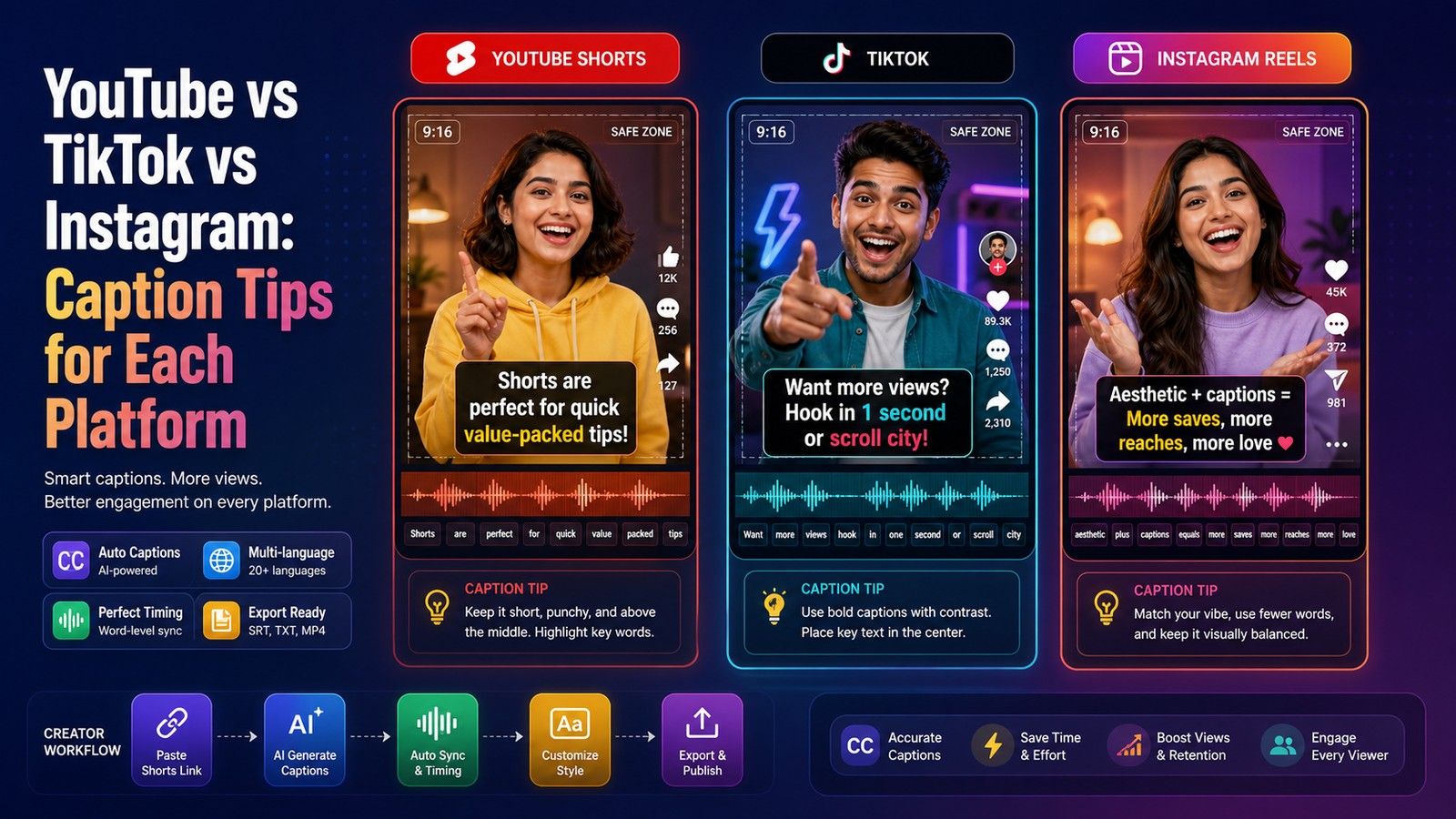
Most caption work is the same on every app: short lines, a readable size, words that match the speech. What changes between YouTube, TikTok and Instagram is the interface drawn over your video, what each app does with its own automatic captions, whether it takes a caption file, and how long the text under the post can be. This checklist covers those four things, platform by platform, from each company's help pages as read on 22 October 2026.
The short version: on YouTube long-form, a corrected caption track usually does the job better than burned-in text. On Shorts, TikTok and Reels, burn the captions into the lower-middle of a 9:16 frame, then deal with the app's own automatic captions so viewers do not get two sets of words. For a feature-by-feature comparison of what each platform's built-in captions can do, see platform auto captions compared. This post is the list to run before you press post.
The checklist at a glance
| Check | YouTube long-form | YouTube Shorts | TikTok | Instagram Reels |
|---|---|---|---|---|
| App makes its own captions | Yes, 67 languages, published when ready | Yes, same list | Yes, for uploaded videos | Yes, when available |
| Viewer can switch them off | Yes, CC button | Yes | Yes, Share then Captions | Yes, in settings |
| Upload a caption file | Yes, SRT and others in YouTube Studio | Help pages do not treat Shorts separately | Not described in TikTok's help | Not described in Instagram's help |
| What covers the frame | Player controls along the bottom | Buttons on the right, title and description low | Buttons on the right, post caption and sound low | Buttons on the right, post caption and auto captions low |
| Post text | 100-character title, 5,000-character description | Same fields as long-form | 2,200 characters through TikTok's API | 2,200 characters, up to 5 hashtags |
YouTube long-form: fix the track first
A horizontal YouTube video is the one place where the platform's caption track is usually the better choice.
- Turn on and correct the automatic captions. YouTube's automatic captions page lists 67 languages for long-form videos and Shorts. Captions are published automatically once ready, which may be after upload, and YouTube tells creators to review them and edit anything mistranscribed. The editor is in YouTube Studio under Subtitles.
- Upload a file if you have a clean one. YouTube's supported-formats page names SubRip (.srt) and SubViewer (.sbv) as the basic formats, in plain UTF-8, with style markup ignored. A file someone has already corrected is the most reliable track you can give it.
- Let viewers size it. On a computer, Settings, then Subtitles/CC, then Options lets each viewer change font, color, size, background and edge style. Burned-in text cannot be resized, which matters for viewers with low vision.
- Check the audio track. On a video with several audio languages, automatic captions follow the default track only.
- Burn in only for a reason. Good reasons: the video will be cut into clips for other apps, or the caption look is part of the edit. If you do, keep the text above the player controls, and accept that a viewer who turns CC on will see both.
YouTube Shorts: work around the title
- What counts. A square or vertical video up to three minutes long, uploaded after 15 October 2024, is a Short automatically.
- Use YouTube's own guides. When you place text in the Shorts editor, visual guides show where the like button, comments and description may appear, and white lines flag a non-safe area near the edges. Check burned-in captions against the same zones with the YouTube Shorts subtitle safe zone preview before you export.
- Keep the hook out of the bottom band. The title and channel name sit there. A caption under them is the first text a viewer loses.
- Automatic captions still apply. They are a track the viewer turns on, so they do not clash with burned-in text unless the viewer asks for them. A Short cut from your own long video in YouTube Studio's clips tool gets autocaptions where available, built from the source video's transcript, with color, font, style and position controls.
- The post caption is the title. Title, description and hashtag limits for Shorts, and how much of a title shows in the feed, are in YouTube Shorts caption and title character limits.
TikTok: decide what happens to TikTok's captions
TikTok's help page on accessibility for your videos and its viewer-side companion (read through a rendering proxy, because the site does not load from our network) describe two caption systems.
- Auto-generated captions are created for videos you upload. Set the spoken language on the post screen under More options, then Select video language, so the captions come out in the right language. After posting, tap the caption on your video, then Edit captions, to fix or remove lines.
- Creator captions are the ones you add in the editor with the Captions button on the side panel. TikTok transcribes the speech, you edit each line, and you can change the font style and color.
- Viewers control the auto captions from the Share button, then Captions, then Show captions. If your video already has captions burned in, a viewer with that setting on gets TikTok's words over yours. Open Edit captions after posting and remove TikTok's, or at least check that the two do not stack.
- The bottom of the frame is busy. Username, post caption and sound run along the bottom, with the like, comment and share buttons down the right. TikTok's ad specifications say the safe zone depends on the format and on the length of the caption, and that Spark Ads show up to four lines of the organic caption. A long post caption pushes the covered area higher, so keep its first lines short. The TikTok subtitle safe zone preview is drawn conservatively for that reason.
- Post caption length. TikTok's developer documentation caps a caption posted through its API at 2,200 characters. The in-app limit is not stated on any TikTok page we could read.
Instagram Reels: switch off the auto captions when yours are burned in
- Where Instagram's captions go. Instagram's help page on reel and video captions says its automatic captions write the speech out as text at the bottom of the reel, show automatically on reels you share unless you turn them off, and may not be available to everyone. The caption language follows the device's language settings.
- Avoid the collision. The bottom is also where burned-in captions usually sit. If your Reel already has captions in the picture, turn Instagram's off for that reel: under More options when you post it, or by editing the posted reel and opening More options.
- Use Meta's numbers as the boundary. Meta's ads guide for Reels suggests leaving at least 14% of the top, 35% of the bottom and 6% of each side free of text. On a 1080 by 1920 frame that is about 269 pixels at the top, 672 at the bottom and 65 on each side. Organic Reels carry the same username, post caption and audio line at the bottom, so the boundary is sensible there too. The Instagram Reels subtitle safe zone preview shows it on a frame from your own video.
- Shape. Instagram accepts reels between 1.91:1 and 9:16, at least 720 pixels and 30 frames per second. Design captions for 9:16.
- Post caption. Instagram's help center now allows up to 5 hashtags on a post and says a post with more will not go through. Meta's developer reference gives 2,200 characters for a caption and still lists 30 hashtags, so go by the help center's 5.
One export for all three
If the same clip goes to Shorts, TikTok and Reels, one burned-in version is simpler than three sets of platform captions, as long as it is built for the strictest overlay.
- Cut the video to 9:16 before you caption it.
- Keep each caption to one or two lines of roughly 32 to 42 characters.
- Place the captions in the lower-middle band: above the bottom 35% that Meta suggests keeping clear, and well in from the right-hand buttons.
- Export once and upload the same file to each app.
- Then handle each app's own captions: remove TikTok's, switch Instagram's off, and leave YouTube's track on and corrected for viewers who rely on CC.
- Write the post text per app: a front-loaded title on YouTube, a short first line on TikTok, no more than 5 hashtags on Instagram.
Where CapsAI fits
CapsAI handles the burned-in step. Upload the MP4 or MOV (up to 10 minutes), choose the spoken language (11 are supported, English among them), correct any word or timing in the browser, pick one of 37 caption styles (8 are free), and set the vertical position slider, which runs from 50 to 90% of the frame height, so the text clears the bottom band. The export is one MP4 with the captions burned in, ready for all three apps. CapsAI does not export SRT or VTT files, so for YouTube's own caption track use YouTube's automatic captions and correct them in Studio.
What to do next
Pick the platform where most of your viewers are and set its rules first; the others are small adjustments. If one clip goes everywhere, caption it once with the caption generator, check it against the three safe-zone previews, and post. There are 3 free minutes to start, and packs are paid once, from $4 (₹49 in India, €4 in the euro area).