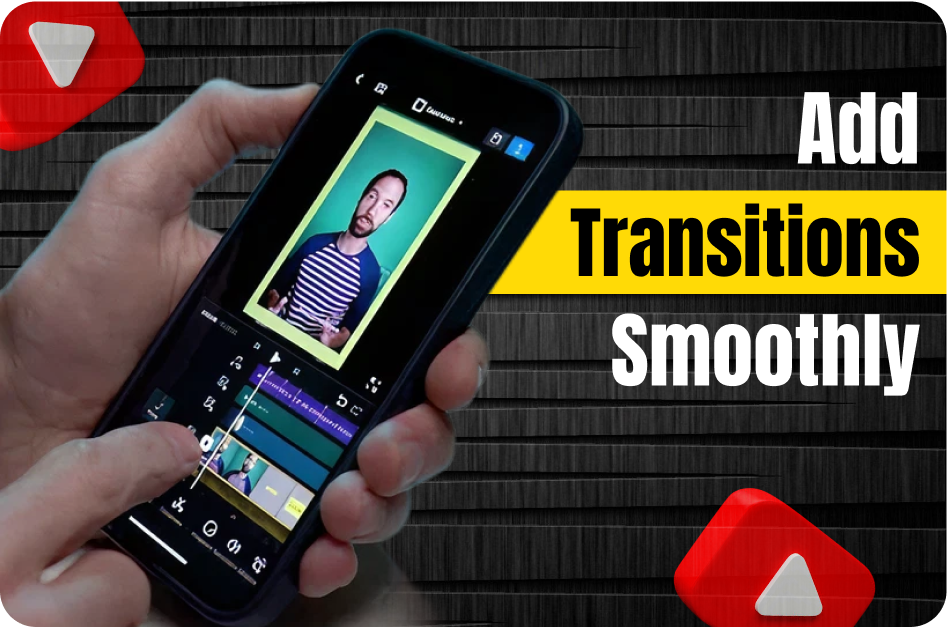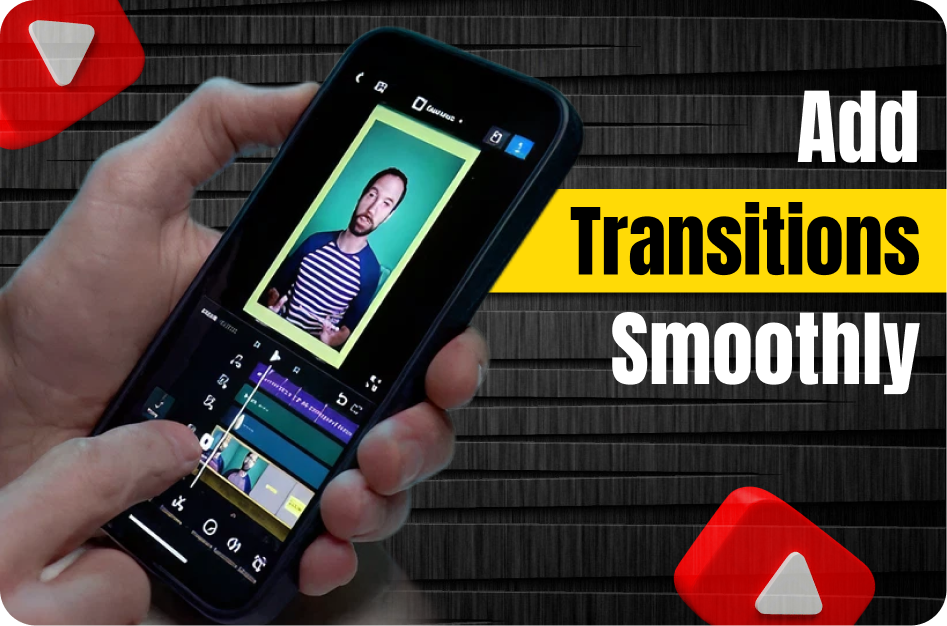
In the fast-paced world of YouTube Shorts, how your video flows matters just as much as what you say. Smooth transitions can make the difference between a jarring clip and a seamless, engaging story that keeps viewers watching until the end. Whether you're creating tutorials, comedy skits, or vlogs, learning to use transitions effectively will help elevate your Shorts content.
This blog will show you how to add clean, professional-looking transitions to your YouTube Shorts, all while maintaining speed, clarity, and style.
Why Transitions Matter in Shorts
- Retention: Viewers are more likely to stay engaged with videos that have smooth scene changes.
- Professional Feel: Good transitions make your content feel polished and edited with care.
- Storytelling: They guide the viewer's eye and help move the narrative along without confusion.
Step-by-Step Guide to Adding Smooth Transitions
1. Plan Your Cuts First
Before diving into transitions, trim your video tightly. Every second matters in a Short, so:
- Remove awkward pauses
- Cut out dead space between shots
- Structure your clips for natural breaks
Use tools like CapCut, InShot, or VN Editor for simple, frame-accurate cutting.
2. Choose Transitions That Match Your Style
Not every video needs a flashy spin or zoom. Think about your content type:
- Vlogs & Lifestyle: Use quick cross dissolves or zoom transitions
- Tutorials: Opt for slide or swipe transitions to show progress
- Comedy: Hard cuts with sound effects often work best
Less is more. Let the transition serve the story.
3. Use Apps That Support Transitions Easily
Here are some beginner-friendly mobile editors:
- CapCut: Free and packed with trendy transitions and effects
- InShot: Great for basic crossfades and slides
- VN Video Editor: Offers timeline precision with drag-and-drop transitions
Record and edit in vertical (9:16) format to keep Shorts-ready.
4. Use Text and Emojis to Smooth the Flow
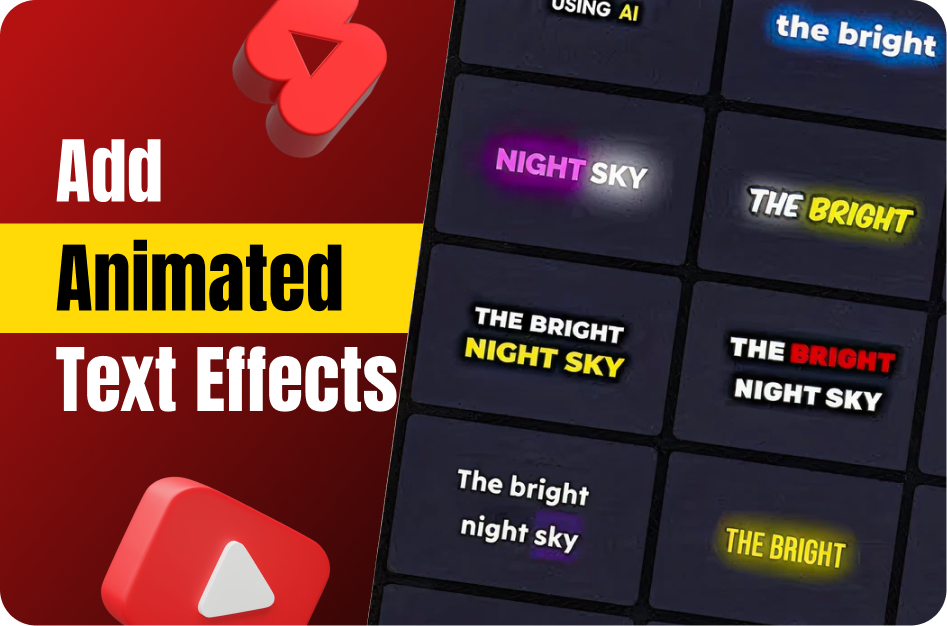
Sometimes, a visual transition isn't enough. You can use animated text overlays to bridge scenes:
- Add captions like "Next..." or "Watch this!"
- Use emojis to cue a mood change or punchline
Tools like Capsai.co make this process effortless. Upload your clip and generate dynamic captions with emojis, animations, and regional language support. Perfect for retaining attention between scenes.
5. Test Your Timing
- Don’t overuse transitions
- Make sure the effect doesn’t distract from your message
- Watch the full video to ensure pacing feels natural
Pro Tip: Add a short sound effect or beat drop with your transition to enhance the impact.
Mistakes to Avoid
- Using too many different types of transitions
- Applying transitions that don’t match the energy of your video
- Forgetting to test for Shorts UI safe zones (text or effects hidden by buttons)
Final Thoughts
Good transitions don’t scream for attention - they hold it. Whether you're using motion blur, emoji captions, or just sharp timing, the goal is to keep the viewer engaged without breaking the flow.
With tools like Capsai.co, you can turn even basic Shorts into scroll-stopping content with smart subtitles and transitions that amplify your message.