If you're serious about growing your YouTube Shorts channel in 2026, text animation isn't just a nice touch - it's a necessity. With most viewers watching Shorts on mute, your on-screen text often carries the entire message. When animated strategically, it can stop the scroll, guide attention, and boost retention dramatically.
This guide will walk you through how to add professional-level animated text effects to your YouTube Shorts using free tools and AI-powered platforms like Capsai.co.
Why Animated Text Effects Matter
- 85% of Shorts are watched without sound. Viewers rely on captions to follow the story.
- Animated text draws attention. It adds motion, energy, and emphasis.
- Retention boost: Dynamic captions keep eyes on the screen longer, signaling quality to the algorithm.
With a tool like Capsai.co, you can auto-generate subtitles with trendy fonts, colors, and animations that match your video’s tone and language - including English, Hindi, Hinglish, and other regional Indian languages.
Step-by-Step: Add Animated Text to Your YouTube Shorts
1. Script Your Video With Text in Mind
Before you even film, write your script like a storyboard. Ask yourself:
- What key phrases should pop on screen?
- Where can I use bold words, emojis, or colors for punch?
Pro Tip: Use punchy phrases like "Don't scroll!" or "Watch this till the end" at the start.
2. Shoot a Clean Short (No Watermarks)
Record your video in vertical 9:16 format. Avoid cluttered backgrounds. Once done:
- Trim dead space
- Keep the pace tight
You want to leave visual room for your animated text without overcrowding the screen.
3. Upload to Capsai.co
Go to Capsai.co and upload your edited video file.
Capsai automatically:
- Transcribes your audio (in English, Hindi, Hinglish, or regional dialects)
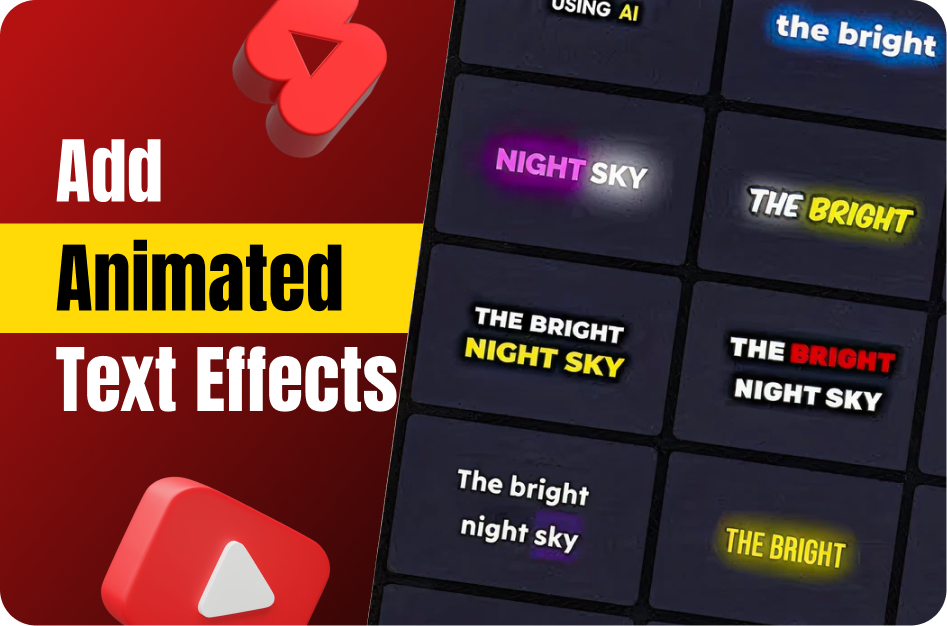
- Adds animated captions with multiple templates
- Lets you style text (fonts, size, color, outline, emojis)
Choose from effects like:
- Karaoke-style word-by-word highlights
- Pop-in or bounce animations
- Attention-grabbing text emphasis
4. Customize Your Animations
Once your captions are generated, fine-tune:
- Timing: Sync text perfectly with speech
- Safe Zone Placement: Avoid placing text where Shorts UI might cover it
- Text Effects: Apply fade, zoom, typewriter, or slide effects
Capsai lets you preview and adjust everything in seconds - no After Effects skills required.
5. Export and Upload
Download your final video with baked-in animated captions. Then upload it to:
- YouTube Shorts
- Instagram Reels
- Facebook Reels
Best Practices for Pro-Level Animated Text
- Use High-Contrast Colors: White with black outline or yellow for high visibility
- Stick to 1-2 Fonts: Keep it clean and consistent
- Avoid Overuse: Use animation to guide, not distract
- Highlight Keywords: Make 1-2 words per sentence bold or colorful
- Test Variations: Try different text styles using A/B Shorts
Final Thoughts: Let Your Text Do the Talking
Animated text isn't just for aesthetics. It's a storytelling tool that grabs attention, explains the message, and keeps your viewers hooked.
Platforms like Capsai.co make it easy to add studio-quality animated text in minutes - no editing background needed.
Want to make every second count on your next Short?
Start with better text.
Start with Capsai.co.