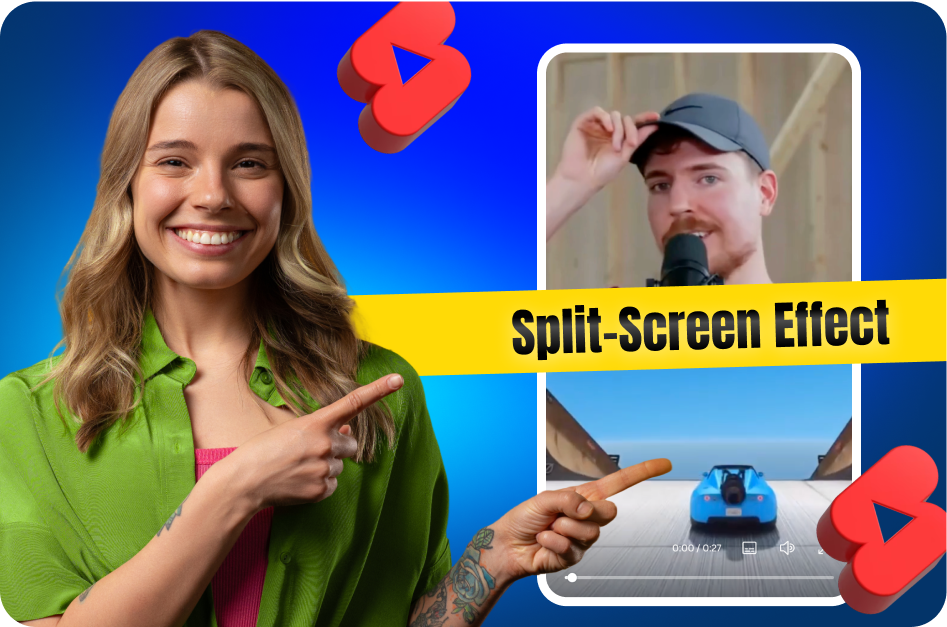
Split-screen effects in YouTube Shorts help creators show two perspectives at once - perfect for comparisons, reactions, or dual storytelling. While YouTube’s Shorts editor doesn’t yet support built-in split-screen or duet features, third-party apps provide easy solutions. Here’s how you can master this trend using simple tools.
1. Why Use Split Screen in Shorts?
Split-screen effects let you:
- Show “Before vs After” results
- React to videos or memes in real-time
- Compare tutorials (e.g., right vs wrong form)
- Display two angles of a scene (e.g., workout demo + timer)
These formats grab attention, convey more context, and increase engagement.
2. Tools to Create Split Screens
Here are top tools to create split-screen Shorts:
CapCut
- Import your main clip
- Use Overlay to insert a second video
- Resize and reposition for top-bottom or side-by-side framing
InShot or KineMaster
- Use video collage features
- Layer two videos and customize sizing
Adobe Premiere Rush
- Add one clip to the timeline
- Place another on a second track
- Reduce scale and position side-by-side
All tools allow vertical (9:16) exports - essential for YouTube Shorts.
3. Tips for Engaging Split Screen Content
- Ensure a clear focus: Don't let two videos compete for attention.
- Sync visuals: Align timing for maximum impact.
- Add captions or labels: Guide viewers on what they’re seeing.
- Use sound wisely: Keep one primary audio track to avoid clutter.
For example:
- Top screen: You doing a fitness routine
- Bottom screen: Text tip or timer running
Or:
- Left screen: A “myth” about nutrition
- Right screen: You busting the myth with facts
4. Publishing Your Split-Screen Short
Once edited:
- Export in 1080p vertical format (H.264)
- Upload with keyword-rich title and description
- Use hashtags like
#splitscreen #YouTubeShorts #CapCut - Add captions using CapsAI to reach viewers who scroll with sound off
Start with a compelling hook - even a zoomed-in frame that splits into two reveals can increase watch time.
5. Final Thoughts
Split-screen Shorts are powerful when used with purpose. Whether you’re reacting to trends or showcasing transformation, the format delivers context fast. Stick to one theme per video, practice smooth edits in your preferred app, and stay consistent.
By mastering split screens, you stand out in the Shorts feed - no extra gear needed.
Recommended Tools: CapCut, InShot, Premiere Rush, KineMaster
Pro Tip: Practice timing split reveals at key beats in the music or narration.