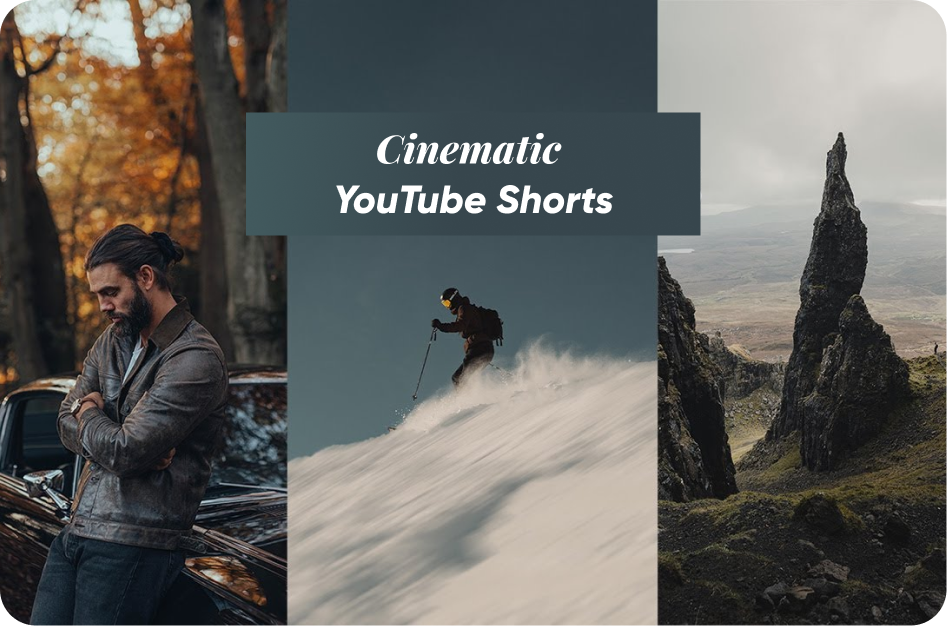
How to Create Cinematic YouTube Shorts with Mobile Editing Apps
Cinematic doesn’t have to mean complicated. With the power of today’s mobile editing apps and the right tools like Capsai.co, any creator can craft stunning, cinematic YouTube Shorts - right from their phone.
If you've ever wondered how top creators get that polished, movie-trailer feel in under 60 seconds, this blog will break it down step-by-step. All you need is your smartphone, a smart app stack, and a clear vision.
Step 1: Capture High-Quality Footage (Even on a Budget Phone)
Cinematic videos start with clean visuals. Here’s how to elevate your raw footage:
- Use natural light: Shoot near windows or outside during golden hour.
- Shoot at 60fps: This gives you smoother motion and more flexibility in post-production (like slow-motion effects).
- Use manual controls: Apps like Filmic Pro or Protake let you lock focus, ISO, and exposure for stable, film-like shots.
Pro Tip: Always shoot vertically (9:16) for Shorts!
Step 2: Choose the Right Mobile Editing App
There are tons of apps, but these are your best bets for mobile cinematic editing:
- CapCut: Free, full-featured, with color grading tools, speed ramps, and sound FX.
- VN Video Editor: Sleek interface, great for transitions and music syncing.
- InShot: Super intuitive and perfect for fast edits and text overlays.
Pick the app that matches your editing style. Most allow you to import LUTs (cinematic color filters), slow down clips, and layer transitions - all things that instantly elevate your Short.
Step 3: Use Sound Design to Create Emotion
Don’t underestimate audio. A well-placed whoosh, riser, or subtle ambient track makes your Short feel like a film.
- Browse the YouTube Shorts Music Library for royalty-free, trending music.
- Use apps like Splice or AudioLab to layer background audio and fine-tune levels.
- Add sound cues that enhance motion - like a ‘pop’ on a text appearance or ‘swoosh’ on a transition.
Bonus: Match these audio cues with animated captions using Capsai.co to double your impact.
Step 4: Add Cinematic Captions with Capsai.co
Most Shorts are watched on mute, which makes your captions critical. But not just any captions - cinematic captions that feel part of the story.
That’s where Capsai.co comes in.
- Upload your final Short and generate subtitles in Hindi, English, or Hinglish.
- Choose from cinematic caption styles that match your video aesthetic.
- Sync captions with key beats, transitions, or emotional moments.
- Export a final version with clean, professional-looking subtitles ready for upload.
This transforms your Short from just another vertical video into a visual story that people feel, even with the sound off.
Step 5: Color Grade for That Movie Look
Cinematic = Color.
- Use LUTs (Look-Up Tables) to give your video a dramatic tone (think orange-teal, noir, or vintage film).
- Most mobile editors support LUT imports or offer presets.
- Adjust shadows, highlights, and contrast for depth.
Apps like CapCut and VN let you do this directly within the app. Pairing color grading with animated captions from Capsai adds an extra layer of polish.
Step 6: Craft a Compelling Hook and Ending
In the cinematic world, story is king. And Shorts need a story packed into under a minute:
- Start strong: Use an emotional shot, a bold question, or a suspenseful clip.
- Build with rhythm: Let your visuals follow the rise and fall of the music.
- End with impact: Add a twist, surprise, or inspiring quote.
And always use a call to action:
- Add "Follow for more" or "Watch the full story on my channel" with stylish on-screen text.
- Let Capsai.co animate this text for you - making it pop exactly when it should.
Final Thoughts: Hollywood Vibes, Phone-Sized Tools
You don’t need a RED camera to make Shorts that look like cinema. With the right capture technique, free mobile editing apps, smart audio design, and Capsai.co for beat-synced captions, you can create cinematic content that feels premium.
So next time you shoot a Short, don’t just point and post. Craft. Edit. Caption. Elevate.