

CapsAI for Claude
Caption videos from Claude
Connect CapsAI to Claude and add animated or plain subtitles to your videos in a chat: pick a style from live previews, upload your video, and get the captioned MP4 back.
Connect CapsAI to Claude
Five steps on claude.ai or the Claude desktop app. The highlighted areas show exactly where to click.
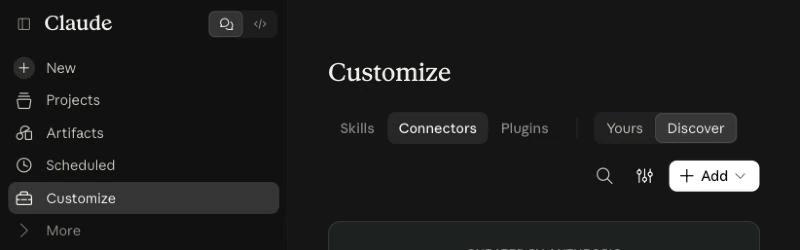
Step 1: Open Customize, then Connectors
In Claude on the web or the desktop app, click Customize in the left sidebar, then the Connectors tab.
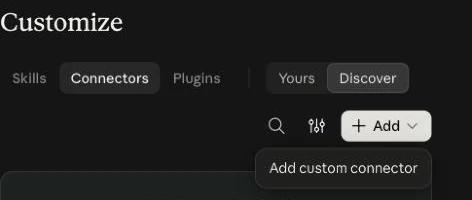
Step 2: Choose Add, then Add custom connector
Click + Add at the top right and pick Add custom connector.
CapsAI isn’t listed in Claude’s connector directory yet, so it’s added as a custom connector.
Step 3: Name it CapsAI and paste the server URL
Type CapsAI as the name, paste the URL below into MCP server URL, and click Continue.
https://mcp.capsai.co/mcp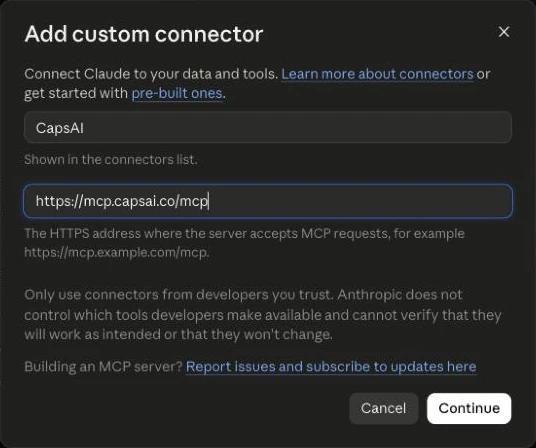
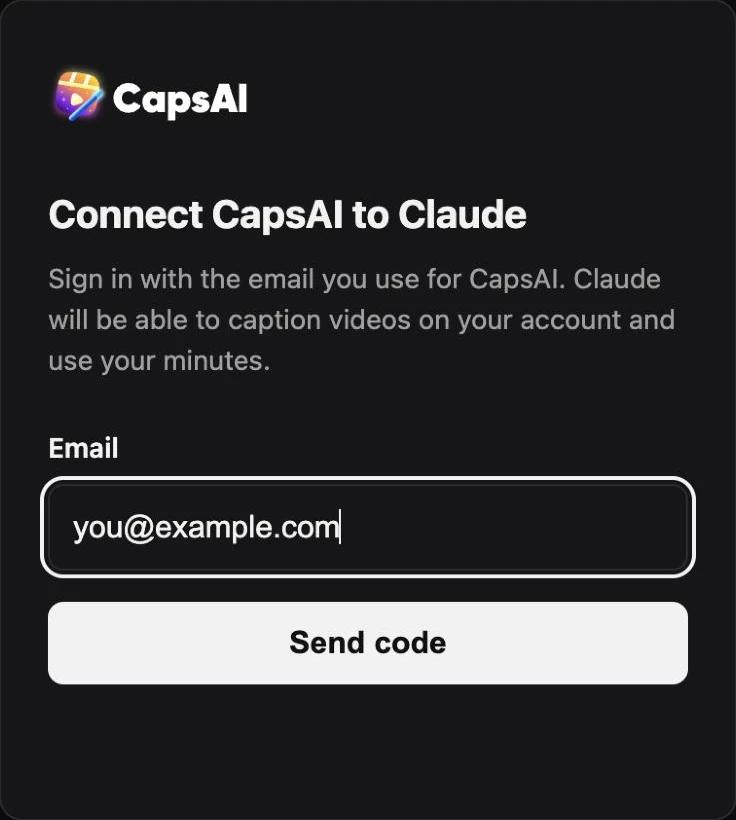
Step 4: Sign in with your CapsAI email
A CapsAI window opens. Enter the email you use for CapsAI, click Send code, and type the code we email you. New to CapsAI? A new email creates your account with free minutes to try it.
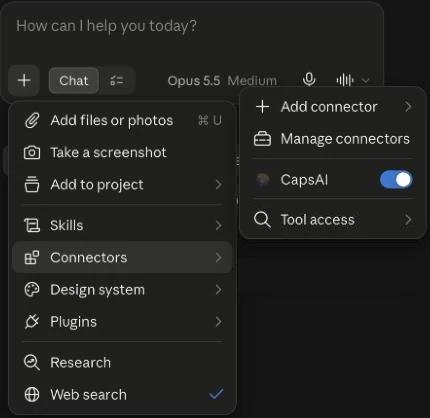
Step 5: Turn CapsAI on in a chat
In a new chat, click +, open Connectors and make sure CapsAI is switched on. Then just ask Claude to caption a video.
Using Claude Code?
Add the connector once from your terminal, then run /mcp in Claude Code and pick CapsAI to sign in with the same CapsAI email window. Claude Code can also upload a video file from your computer itself.
claude mcp add --transport http capsai https://mcp.capsai.co/mcpWorked example: Caption a video from Claude Code, one real session command by command.
What to ask Claude
Ask in your own words; these are a good start.
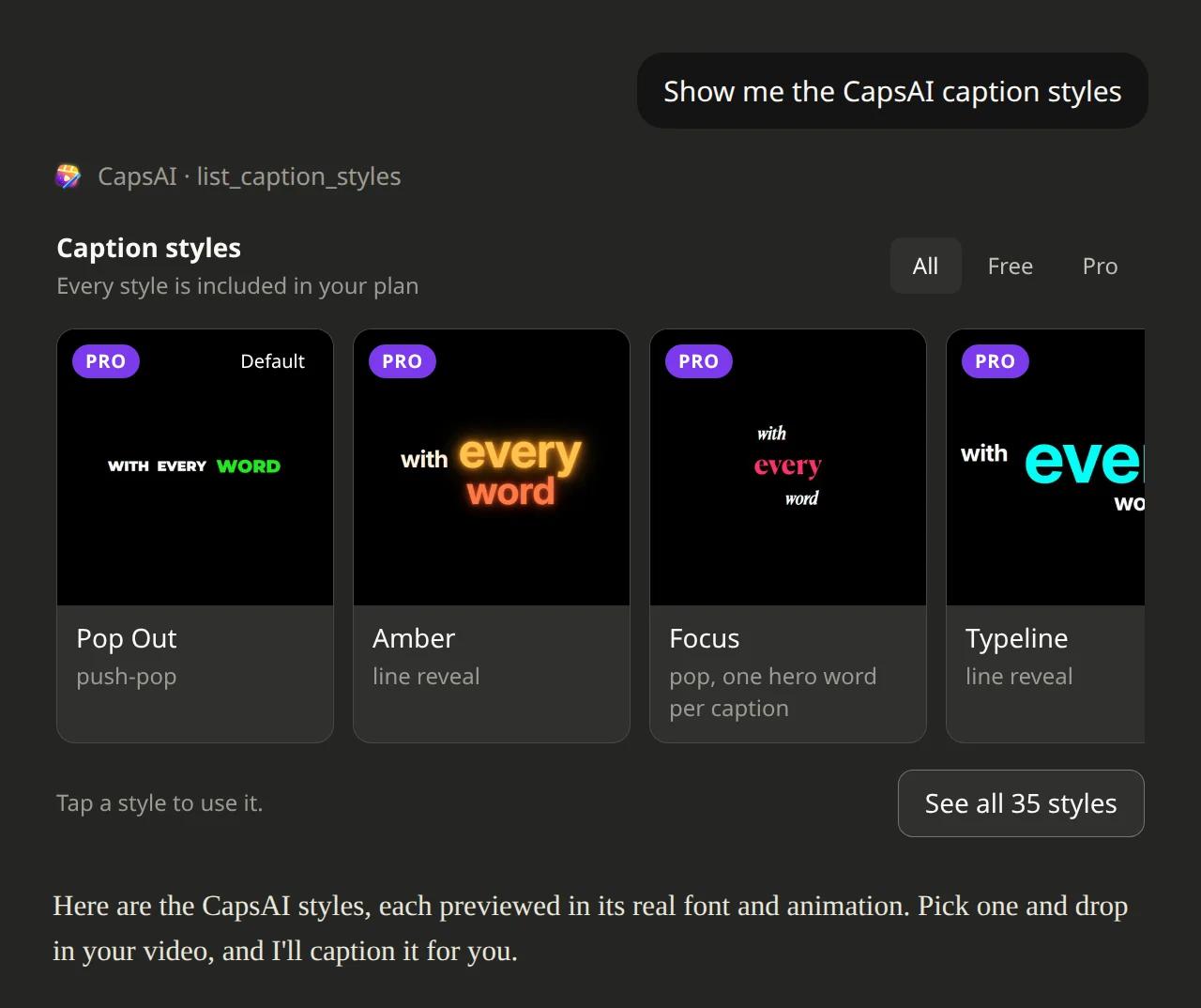
- “Show me the CapsAI caption styles.”Claude opens a gallery of animated previews; click one to pick it. Browse them here first.
- “Add animated subtitles to my video in the Pop Out style, two words at a time.”Starts a captioning job in that style.
- “Caption this Hindi video with plain white subtitles at the bottom.”Plain static subtitles in the spoken language.
- “Redo my last video in the Story style.”Renders the same video again in another style.
- “How many CapsAI minutes do I have left?”Your minutes, plan and limits.
How it works
Videos you caption through Claude stay in Claude and aren't listed in your CapsAI workspace. To fine-tune the words, timing or style, click Open in editor on the finished video in the chat.
- UploadClaude starts a captioning job and gives you an upload link. Open it and drop in your video; it uploads straight to our storage.
- CaptionCapsAI transcribes the speech, then renders the video with your chosen caption style.
- DownloadClaude gives you a download link for the finished MP4, valid for one hour. Ask again any time for a fresh link.
Styles, minutes and limits
- All 37 editor caption styles are available, animated or as plain static subtitles. Pro styles need a paid plan. See every style with previews and ids.
- Transcription uses your CapsAI minutes: a 2-minute video uses 2 minutes. Re-rendering in a new style costs the same as in the editor.
- Videos can be up to 10 minutes long. MP4, MOV, M4V and WebM files are supported.
- Links to videos on YouTube, Instagram or other sites aren’t supported in Claude yet; upload the video file instead.
- See pricing to add minutes or upgrade.
What Claude can do with your account
- Get account: your minutes left, plan and limits.
- Show caption styles: the style gallery with animated previews.
- Caption a video: creates a project and an upload link.
- Check a caption job: progress, and the download link when it’s done.
- Restyle a video: renders a captioned video again in another style.
- Get transcript: the transcript and SRT subtitles of a video.
- List my videos: your recent CapsAI projects.
Privacy and disconnecting
The connector only sees what you send to these actions and the CapsAI projects in your own account. We don’t receive your Claude conversations. Videos, transcripts and exports are handled as described in our privacy policy, and use of CapsAI is covered by our terms.
To disconnect, open Customize → Connectors → Yours in Claude and remove CapsAI. Your videos stay in your CapsAI account until their storage period ends, or until you delete them in the app.

Support
Something not working? Email [email protected] with what you asked Claude and, if you have it, the project ID Claude showed you.