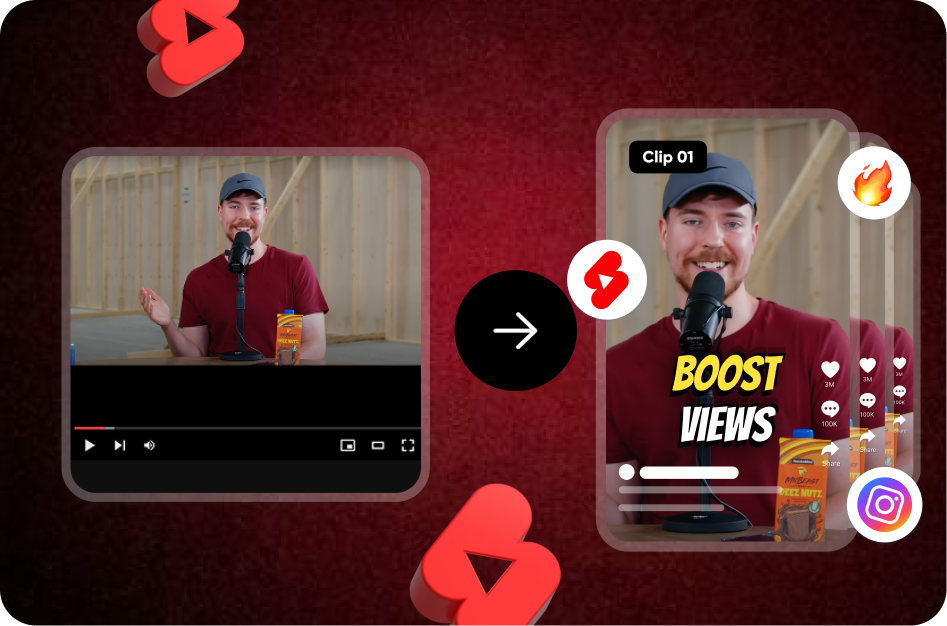
Creating a high-performing YouTube Short isn’t just about great content - it’s also about nailing the technical specs. If your video isn’t formatted properly, it might never get picked up by the Shorts algorithm, no matter how brilliant your message is.
Think of formatting as the envelope that carries your content. If the envelope is incorrectly addressed, the message never reaches the viewer.
This guide breaks down the exact technical requirements and export settings you need to make sure your YouTube Shorts are recognized, rendered, and ranked.
The Foundation: Format Frames the Content
Your Short might have an incredible hook, but if it’s not framed for mobile, it’ll fall flat.
To maximize performance:
- Design with the vertical frame in mind
- Use dynamic visual elements like bold text
The easiest way to integrate attention-grabbing captions is by using Capsai.co. It helps you instantly add animated, on-brand text that's perfectly optimized for vertical video. The right format brings your content to life.
The Core Requirements (Non-Negotiables)
These are the three absolute musts for your video to qualify as a Short:
1. Aspect Ratio: 9:16 Vertical
- Required Format: 9:16
- Resolution: 1080x1920 pixels (Full HD Vertical)
- Why It Matters: This fills the mobile screen edge-to-edge. Any other format (like square or horizontal) results in black bars or misclassification.
2. Length: 60 Seconds or Less
- Hard Cutoff: If your video is even a fraction over 60.0 seconds, it won't be recognized as a Short.
- Ideal Length: 15-45 seconds for optimal engagement.
3. Orientation: Must Be Vertical
- Horizontal or landscape videos (16:9) are automatically pushed into the standard video feed, not Shorts.
Recommended Export Settings (For Quality & Speed)
When exporting your final video, use the following settings for maximum clarity and algorithm-friendliness:
- Codec: H.264 (AVC)
- Resolution: 1080x1920p
- Frame Rate: 24fps (cinematic), 30fps (standard), or 60fps (action/sports)
- Bitrate: 10-15 Mbps (sweet spot for crisp visuals without huge file sizes)
- Audio Codec: AAC
- Sample Rate: 48kHz
- Channels: Stereo
Avoid exporting in 4K - YouTube compresses everything anyway, and it slows down your upload and processing time.
Design Around the Safe Zone (UI-Free Area)
YouTube Shorts adds UI overlays like buttons and titles on top of your video:
- Bottom 15-20%: Covered by channel info + action buttons
- Right Edge: Overlay controls may interfere
Best Practice: Keep your core visual content - especially text and faces - in the center 60% of the screen.
Tools like Capsai.co help automatically place text in safe zones so nothing important gets hidden.
Final Checklist Before You Upload
- Aspect Ratio: 9:16
- Resolution: 1080x1920
- Duration: ≤ 60 seconds
- Orientation: Vertical
- Exported in H.264 Codec
- Bitrate between 10-15 Mbps
- Frame Rate matched to original footage (24, 30, or 60 FPS)
- On-screen text added using Capsai.co
Conclusion: Don’t Let Technical Errors Kill Great Content
Formatting your Shorts correctly isn't optional - it's fundamental. The algorithm is blind to creativity if your video doesn't meet the specs. When you pair technical precision with compelling storytelling and professional on-screen captions (courtesy of Capsai.co), your Shorts become not just watchable, but unmissable.
Master the specs. Maximize the impact. Let your content shine.