Readable at every size
Preview caption size and placement for desktop, TV, and phone viewers before export.


For YouTubers
Create and review subtitles for YouTube videos, tutorials, interviews, podcasts, and Shorts with CapsAI.
MP4 or MOV
video upload
3 min
free to start
11
spoken-language options

Features
Preview caption size and placement for desktop, TV, and phone viewers before export.
Adjust caption timing so lines appear in sync with your edits and jump cuts.
Choose from 11 spoken-language options, including Hinglish. CapsAI does not translate captions.
Try the workflow with 3 free minutes, then buy one-time minute packs with no subscription.
Caption full-length uploads and vertical Shorts. Processing uses minutes from your free allowance or one-time pack.
Caption styles with word-by-word highlights draw attention to each word as it is spoken.
Workflow
Step 1
Upload an MP4 or MOV video that you own or have permission to process.
Step 2
Choose the spoken language and CapsAI creates timed captions from the speech in your video.
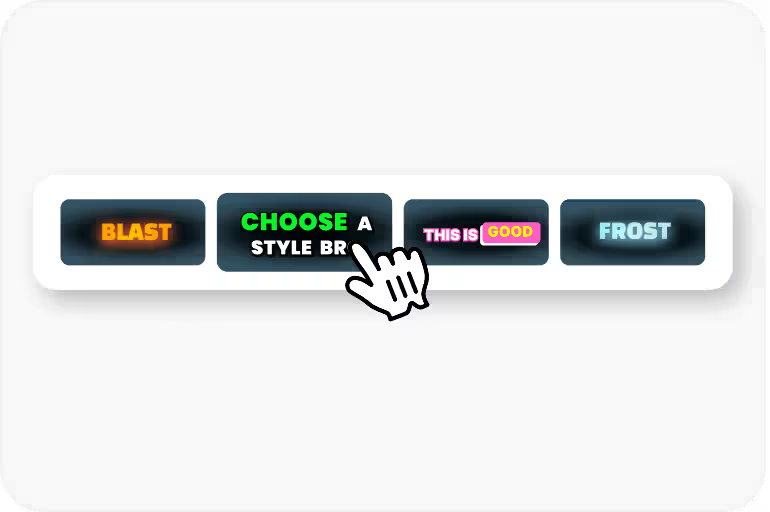
Step 3
Correct the text and timing, then apply a caption style and check its placement.
Step 4
Export an MP4 with the captions burned in, using an option available to your plan.
Use Cases
Captions let viewers follow your video when they cannot turn the sound on.
Captions make your videos accessible to viewers who are deaf or hard of hearing.
Review channel names, product names, and slang in the draft so captions match what you said.
Generate captions for videos recorded in Hinglish, Hindi, English, and other supported Indian languages.
FAQ
CapsAI burns the captions into the exported MP4, so they appear on screen for every viewer. They are not a separate closed-caption track that viewers can turn off.
No. CapsAI generates captions in the spoken language you select; it does not translate captions into another language.
The uploader accepts MP4 or MOV video files. Audio-only files and pasted video URLs are not part of the caption workflow.
The export is an MP4 with the captions burned in. Separate SRT or VTT files are not available from the editor yet; the standalone converters under /tools work on subtitle files you already have.
Accuracy depends on audio clarity, background noise, accents, and language selection. CapsAI creates a first draft and lets you edit captions before export.
You can start with 3 free minutes. Free video export may include a CapsAI watermark; watermark-free video export is listed as a paid-plan benefit.
Upload an MP4 or MOV file, review the caption draft, and export a captioned MP4 for your YouTube videos. Start with 3 free minutes.
Try CapsAI Free →Related tools